Add Google Drive to Hermes Agent Securely
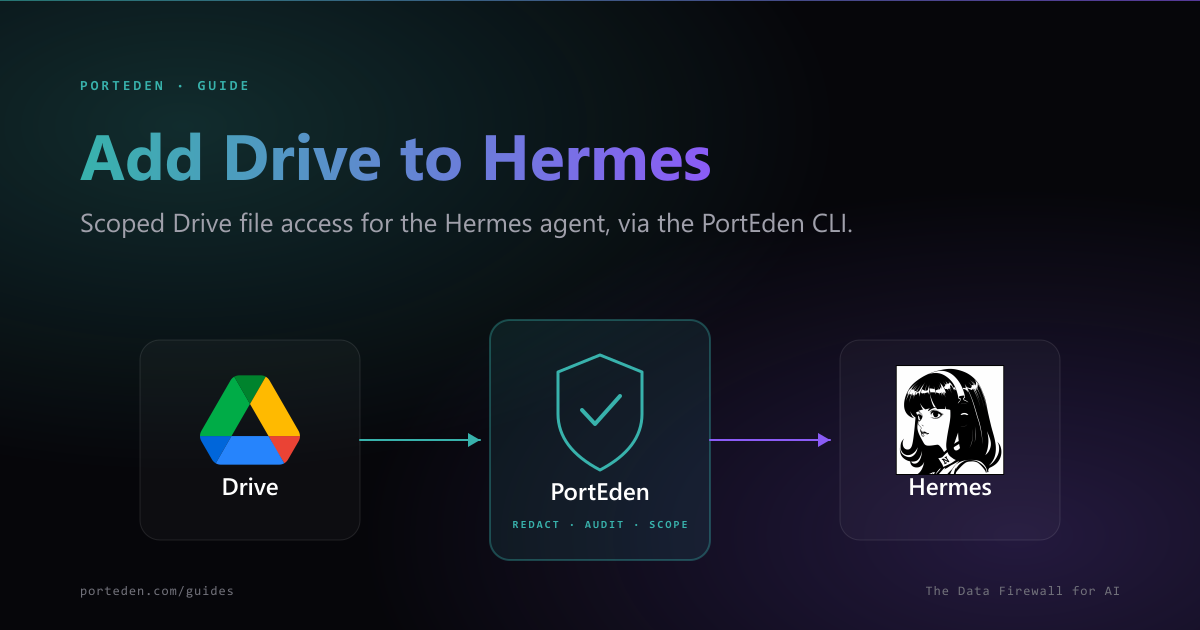
Hermes Agent runs locally and shells out to tools through its skills system. To let it find and read your Drive files the safe way, install the PortEden CLI, connect Google Drive once, and wrap the CLI in a short Hermes skill. Your agent then searches and reads files through porteden drive, which applies file-level rules, strips PII, and logs every call. No raw Google token touches the agent. Prefer MCP? PortEden runs as a remote MCP server too, covered at the end of this guide.
What this unlocks
With the skill in place, your Hermes agent can search Drive, look up file metadata, fetch share/export links, and (when you allow it) organize files, all by running the PortEden CLI under the hood. File-level Drive rules and token scope decide what is visible, and every action is written to the PortEden audit trail with the command, the decision, and the response shape.
Compared with handing the agent a Drive OAuth token, routing through the PortEden CLI gives you:
- No raw credential in the agent: the Google token stays inside PortEden; the agent only runs a local command.
- File-level rules: allow specific folders, block the rest.
- Links only on download: no raw bytes streamed into the model context.
- Independent revocation and an audit trail you can hand to security review.
Prerequisites
| Requirement | Details |
|---|---|
| Hermes Agent | Installed and runnable locally (the hermes command on your PATH) |
| PortEden CLI | Installed via Homebrew, the install script, or go install (Step 1) |
| Google account | With Google Drive (personal or Workspace) |
| Drive scope | The token needs driveAccessEnabled and a Google connection with Drive scopes (Step 3) |
| PortEden account | Free, created during login. No credit card. |
Two ways to connect
Step 1: Install the PortEden CLI
Pick whichever installer fits your machine.
brew install porteden/tap/porteden curl -sSfL https://raw.githubusercontent.com/porteden/cli/main/install.sh | bash go install github.com/porteden/cli/cmd/porteden@latest porteden --help Prefer not to install globally?
npx @porteden/cli ... instead of a global porteden. The global install is smoother once Hermes is calling it on every request.Step 2: Authenticate to PortEden
Log in once. The CLI opens your browser and stores a PortEden API key in your OS keyring, you can create a PortEden account in the same flow.
porteden auth login # Name the key so you can spot it laterporteden auth login --title "Hermes box" porteden auth status Headless or CI machine?
PE_API_KEY=pe_your_key in the environment and the CLI uses it automatically, no browser step.Step 3: Connect Google Drive
Authorize Drive scopes on your Google account. If you already connected Google for Gmail or Calendar, this adds Drive access to the same connection.
npx @porteden/cli connect drive driveAccessEnabled for Drive commands to work.porteden drive files -jc google:1BxiMVs0...). Pass them as-is.Google Workspace accounts
Step 4: Add a Hermes skill that wraps the CLI
Hermes reads skills from ~/.hermes/skills/. A skill is a SKILL.md file with YAML frontmatter plus instructions the agent reads before it acts. Create one that documents the PortEden drive commands.
mkdir -p ~/.hermes/skills/porteden-drive ~/.hermes/skills/porteden-drive/SKILL.md:--- name: porteden-drive description: >- Search and read Google Drive files securely via the PortEden CLI. Use when the user wants to find a document, list folder contents, or get file links. Upload, move, rename, share, and delete require explicit confirmation. metadata: hermes: tags: [drive, files, google, productivity] category: productivity --- # PortEden Drive Use the `porteden drive` command to search and read Google Drive. Always pass the `-jc` flags (JSON + compact) for token-efficient output. ## Read and search (safe, default) - List files: `porteden drive files -jc` - Search by keyword: `porteden drive files -q "budget report" -jc` - Filter by folder: `porteden drive files --folder google:0B7_FOLDER_ID -jc` - Filter by type / name: `porteden drive files --mime-type application/pdf -jc` - File metadata: `porteden drive file google:FILEID -jc` - View / export links: `porteden drive download google:FILEID -jc` - Permissions: `porteden drive permissions google:FILEID -jc` File IDs are provider-prefixed (e.g. `google:1BxiMVs0...`). Pass them as-is. `download` returns URLs only, never binary content. Check `accessInfo` in responses to understand active token restrictions. ## Write actions (confirm first) Before `upload`, `mkdir`, `rename`, `move`, `share`, or `delete`, echo the file ID and intended change, then wait for the user to confirm. `delete` moves to Drive trash (reversible). PortEden enforces file-level rules and token scope, and logs every call. hermes skills porteden-drive should appear in the list. If a chat session is already open, reload skills or restart it.Make the description do the routing
Step 5: Verify and tighten
Verify end to end
Start a Hermes chat and ask the agent to use the skill:
hermes chat Review what happened
Run a command with verbose output to see the request/response (auth headers redacted), and check the full audit trail at my.porteden.com.
porteden -v drive files -jc Tighten the token (optional)
The token PortEden created applies Drive rules and scope. Adjust it from my.porteden.com under Access Tokens, or isolate accounts on the CLI side.
Common ways to narrow what the agent can reach
| Tighten | How |
|---|---|
| Read-only | Keep write scopes off the token so the agent can search and read but not change files |
| Folder allowlist | Permit specific folders with Drive rules and block everything else |
| Isolate accounts | Run with PE_PROFILE=work (or --profile work) so a task touches only that account |
| Confirm before write | Treat upload, move, rename, share, and delete as confirm-first in the skill |
| Revoke fast | porteden auth logout clears the keyring; revoke the token in PortEden to be sure |
Alternative: connect via MCP
Hermes can also reach PortEden as a remote MCP server, configured in ~/.hermes/config.yaml. The CLI skill above keeps everything local; MCP reuses PortEden's hosted server and is handy if you already run other MCP servers in Hermes. Either path applies the same file-level rules, redaction, and audit.
cd ~/.hermes/hermes-agent uv pip install -e ".[mcp]" /drive endpoint and bridged into Hermes with mcp-remote:mcp_servers: porteden-drive: command: "npx" args: ["-y", "mcp-remote", "https://mcp.porteden.com/drive"] hermes mcp # or, inside a running chat session/reload-mcp Same firewall, your choice of transport
mcp_servers across agents.Suggested prompts
Once the skill is live, try these in hermes chat:
"Find the latest deck mentioning 'onboarding' and give me the link. Do not change anything."
"List everything in my 'Shared with me' that was modified in the last 7 days."
"Show me who has access to the Q1 budget file. Flag anything shared publicly."
"Propose a folder structure for my loose PDFs. Show the plan; do not move anything until I confirm."
Troubleshooting
Drive commands fail with an access or scope error
Symptoms
- porteden drive files -jc returns an authorization or 'drive not enabled' error.
- authWarnings appear in list responses.
Checks
- Re-run npx @porteden/cli connect drive and complete Google's Drive consent.
- Confirm the token has driveAccessEnabled in PortEden.
- For Workspace accounts, ask your admin to allow third-party OAuth.
Debug prompt for the agent
hermes can run, but porteden is 'command not found'
Symptoms
- The agent reports it cannot find the porteden binary.
- porteden --help works in your shell but not when Hermes calls it.
Checks
- Confirm the install: run porteden --help in the same shell Hermes launches from.
- GUI-launched agents may not inherit your shell PATH. Install via Homebrew to a standard bin dir, or use an absolute path in the skill.
- As a fallback, document npx @porteden/cli ... in the skill instead of the bare porteden command.
Debug prompt for the agent
Search returns no files
Symptoms
- porteden drive files -q "..." -jc returns nothing when you expect matches.
- Only some files appear.
Checks
- Broaden the query, or list without a filter: porteden drive files -jc.
- Check the token's folder allowlist in PortEden; files outside allowed folders are hidden by design.
- Use --shared-with-me for files others shared with you.
Debug prompt for the agent
Hermes does not use the skill
Symptoms
- The agent answers from general knowledge instead of running porteden.
- porteden-drive is missing from hermes skills.
Checks
- Confirm the file path is exactly ~/.hermes/skills/porteden-drive/SKILL.md.
- Validate the YAML frontmatter (name and description are required).
- Reload skills or restart the chat session so Hermes re-scans the skills directory.
- Make the description action-oriented so the agent selects it for file prompts.
Debug prompt for the agent
FAQ
Does the Hermes agent ever see my raw Google Drive token?
No. The Google OAuth token lives inside PortEden, and the PortEden CLI stores only a PortEden API key in your OS keyring. Hermes shells out to the porteden command and gets back scoped, redacted results. The agent never holds a Drive credential it could leak or escalate.
Can I stop the agent from reaching certain folders or files?
Yes. PortEden applies file-level Drive rules and token scope, so you can allow specific folders and block the rest. The token's accessInfo describes the active restrictions, and every porteden drive call is filtered through them before the agent sees anything.
Can the agent delete or share my files?
Only if the token allows it. The recommended skill keeps the agent on search and read, and treats upload, move, rename, share, and delete as confirm-first actions. delete moves files to Drive trash (reversible) rather than hard-deleting. Keep the token read-only until the workflow is proven.
Does the agent download file contents?
porteden drive download returns view and export links only; no binary content is streamed. The agent works from metadata, search results, and links, which keeps large files and raw bytes out of the model context.
Where is the audit log, and how do I revoke access?
Every porteden call is recorded in your PortEden audit trail at my.porteden.com. To cut the agent off, run porteden auth logout to clear the keyring on that machine, or revoke the token and disconnect Drive from my.porteden.com. Revoking the PortEden token does not affect your human Google sign-in.
Next steps
PortEden is a software provider, not a law firm, accounting firm, or compliance auditor, and nothing on this page is legal, compliance, tax, or other professional advice. PortEden does not issue compliance certifications, attestations, or audit opinions. This content is provided for general informational purposes only, on an as-is basis and without warranties of any kind, and may not reflect the most current laws, regulations, or your specific situation. Before acting on it, consult a qualified attorney, auditor, or compliance professional.