Secure Grok Outlook Connection with PortEden
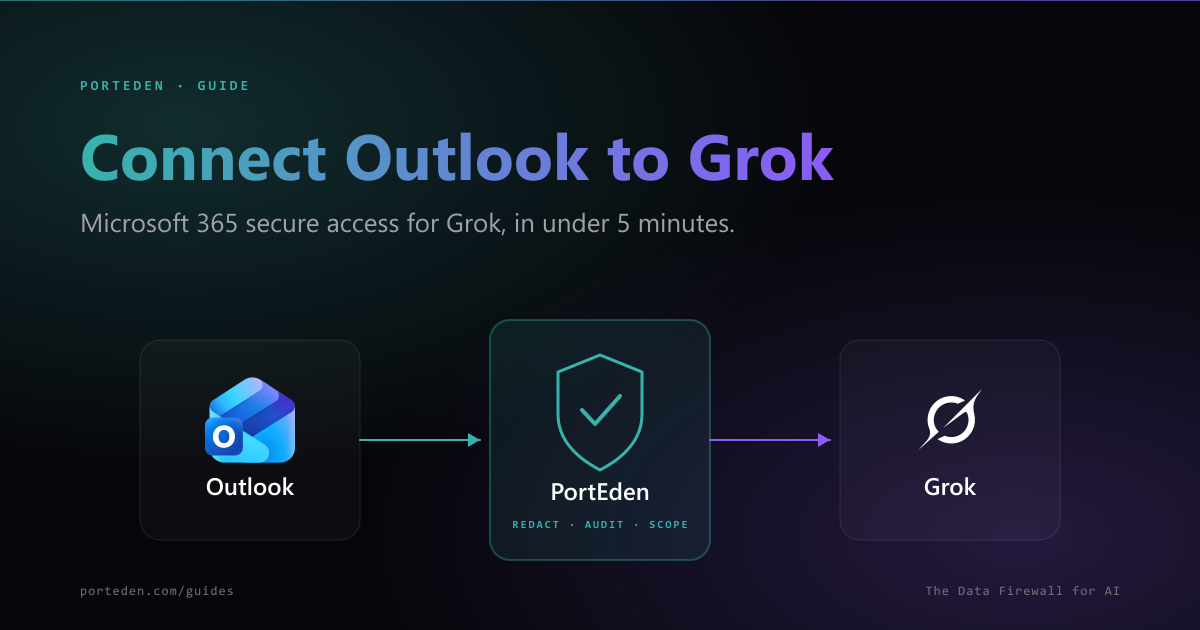
This guide sets up a secure Grok and Outlook connection using PortEden as the data firewall. You add one Custom MCP URL in Grok, sign in, and Grok can read and act on Microsoft 365 mail through scoped permissions, with PII redacted before it reaches xAI and every tool call recorded in the PortEden audit log. Works with Microsoft 365, Outlook.com, and Exchange Online. No prior PortEden signup needed.
In short
- Start in Grok. Add one Custom MCP URL:
https://mcp.porteden.com/email - PortEden's auth window opens. Sign in or sign up in one click. No prior PortEden setup required.
- If Outlook is already connected to your PortEden account, the Microsoft authorization step is skipped automatically.
- Verify with a read prompt. Tighten permissions, redaction, and contact rules later from my.porteden.com.
What you get
When the connection is live, Grok can search, summarize, draft, and reply through Outlook using natural language. Every tool call routes through PortEden, which applies:
Real-time redaction
Names, emails, phone numbers, account IDs, and 50+ other identifier types are stripped or tokenized before content reaches Grok.
Per-action permissions
Grant read, draft, send, move, delete, or categorize as separate scopes. A read-only token literally cannot send a message.
Contact and time rules
Block or allow specific senders, restrict access to working hours, exclude entire folders, or hide content older than a date.
Audit trail
Every tool call from Grok is logged: the requested action, the decision (allow, redact, or block), and the response shape returned. SIEM-exportable.
Prerequisites
- A Grok account at grok.com on a plan that supports Connectors and Custom MCP. As of May 2026, this is available on Grok's paid tiers.
- An Outlook, Microsoft 365, or Exchange Online account you want Grok to use. You will authorize it during the flow if your PortEden account does not already have Outlook connected.
No PortEden account yet? That is fine.
Step 1: Add the PortEden MCP Connector in Grok
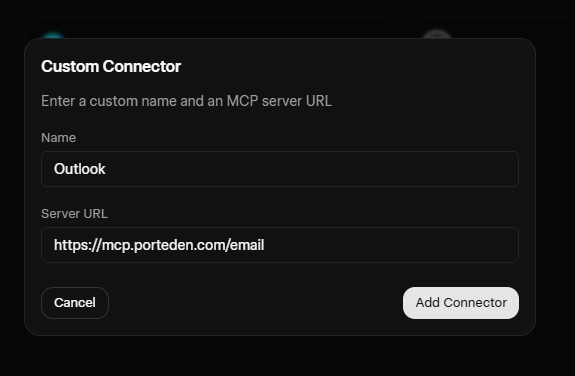
Start in Grok. PortEden runs a hosted MCP server you can connect with one URL. Nothing to install, nothing to deploy. The same email endpoint serves Outlook, Microsoft 365, Exchange Online, and Gmail.
Connector values
| Field | Value |
|---|---|
| Connector name | Outlook |
| MCP server URL | https://mcp.porteden.com/email |
| Authentication | OAuth (handled by PortEden) |
Just the URL is enough
Want more than email later?
Each PortEden capability has its own MCP URL. Add them as additional Custom Connectors in Grok the same way. Use the capability name as the connector name so Grok picks the right one.
{ "Outlook": "https://mcp.porteden.com/email", "Calendar": "https://mcp.porteden.com/calendar", "OneDrive": "https://mcp.porteden.com/drive", "SharePoint": "https://mcp.porteden.com/drive", "Tasks": "https://mcp.porteden.com/tasks" } Step 2: Sign in to PortEden
When Grok enables the connector, it opens a PortEden auth window. This is the single setup screen you will see. There is nothing to do in advance.
What the token looks like
Step 3: Connect Outlook (first-time only)
This step runs only if your PortEden account does not already have Outlook connected. If it does, PortEden reuses the existing Outlook connection and you can jump straight to Step 4.
If Outlook is not connected yet
If Outlook is already connected to PortEden
You will not see a Microsoft authorization prompt at all. PortEden detects the existing connection, attaches it to the new Grok token, and returns you to Grok in a couple of seconds. This is the most common path for existing PortEden users.
Tenant admin consent
Mail.Read, Mail.Send, Mail.ReadWrite, offline_access, and User.Read.Step 4: Verify the connection
Open a new Grok chat and run a low-risk read prompt. Then check the PortEden audit log to confirm the request shows up.
Try one of these
What to confirm
- Grok returns real data from your Outlook mailbox, not a refusal or an error.
- Sensitive identifiers (full email addresses, phone numbers) appear redacted or tokenized if you left redaction enabled.
- The PortEden audit log at my.porteden.com shows the request with a green allow decision.
No data yet? Ask Grok to introspect
search_emails, get_email, and list_threads.Step 5: Tighten what Grok can do (optional)
The token PortEden created in Step 2 already uses conservative defaults: email scope only, redaction on, and confirm-before-write for send and delete. Once the connection works end-to-end, you can tighten or relax it from my.porteden.com under Access Tokens. Find the token tied to the Grok connector and edit it.
Permission presets for Grok
Pick the action set that matches what you want Grok to do
| Preset | What Grok can do | What it cannot do |
|---|---|---|
| read_only | Search, read, summarize, and quote messages | Send, draft, move, categorize, delete |
| read_and_draft (default) | Read plus create drafts in the Drafts folder | Send anything outside of drafts |
| read_send | Read plus send replies and new messages | Delete or modify folders |
| full_email | All email actions including move, categorize, and archive | Touch other PortEden capabilities (calendar, drive) |
Recommended rules for a Grok token
- Redaction: Leave on. PortEden strips names, emails, phone numbers, and document IDs by default.
- Contact blocklist: Add HR, legal, and personal aliases (or whole domains) you do not want Grok touching.
- Time window: Restrict to messages from the last 90 days unless you have a specific reason to grant historical access.
- Folder exclusions: Block
Confidential,Legal, and any client-specific folders or categories under NDA. - Confirm before write: Keep on for send and delete so Grok surfaces a preview before acting.
Changes apply immediately
Suggested prompts for everyday use
Once the connection is verified, these prompts are good starting points. Each maps to a single PortEden tool call, so behavior is predictable and the audit log stays clean.
"Summarize my unread emails from today into three buckets: urgent, replies needed, and FYI."
"Find every email from contoso.com in the last 60 days and group them by thread."
"Draft a polite reply to the latest message from my manager declining the meeting and proposing next Tuesday."
"List threads where I sent the last message more than five days ago and have not received a reply."
"Send a short note to the design list confirming Friday at 10am. Confirm with me before sending."
"Find newsletters I have not opened in 30 days and propose a list to move to Archive."
Troubleshooting and error handling
PortEden returns structured errors that Grok surfaces in its replies. Match the message you see to the table below, then jump to the matching debug prompt in the next section.
Grok cannot reach the PortEden MCP server
Symptoms
- Grok says "I could not reach the connector" or "Custom MCP server unavailable".
- No request appears in the PortEden audit log.
Checks
- Confirm the MCP URL in the Grok Custom Connector is exactly https://mcp.porteden.com/email (no trailing slash, no typos).
- Make sure the connector is Enabled in your Grok workspace, not just Saved.
- Check Grok's connector status page for any global xAI incident.
Debug prompt for Grok
PortEden auth window did not appear
Symptoms
- You enabled the connector in Grok but no PortEden sign-in window opened.
- The connector stays in a Pending or Needs auth state.
Checks
- Allow pop-ups for grok.com in your browser, then click Enable on the connector again.
- If you have multiple Grok tabs open, close them and retry in a single tab so the auth callback can find the right window.
- Open my.porteden.com in another tab and sign in there first. Grok will detect the active session on the next attempt.
- Try a different browser if a strict privacy extension is blocking the cross-origin auth handshake.
Debug prompt for Grok
Microsoft says admin approval is required
Symptoms
- Microsoft consent screen shows "Need admin approval" or "AADSTS65001".
- The Connect Outlook step never completes for users on a managed tenant.
Checks
- Ask your Entra ID admin to grant tenant-wide consent for PortEden from the Microsoft Entra admin center under Enterprise applications.
- If you are an admin, retry the consent flow with the 'Consent on behalf of your organization' checkbox.
- Confirm the requested scopes are allowed by your tenant's app consent policy: Mail.Read, Mail.Send, Mail.ReadWrite, offline_access, User.Read.
Debug prompt for Grok
401 Unauthorized after the connection was working
Symptoms
- Calls used to work but now all Outlook tool calls from Grok fail immediately.
- Audit log shows an auth_failed or token_revoked entry.
Checks
- Open my.porteden.com, go to Access Tokens, and check the token tied to the Grok connector. It may have been revoked, expired, or rotated.
- If the token is gone, return to Grok and click Reconnect on the Outlook connector. PortEden will issue a fresh token via OAuth.
- If a Microsoft conditional access policy changed (MFA, device compliance), the underlying Microsoft Graph token may have been invalidated. Reconnect.
Debug prompt for Grok
403 Permission denied on a specific action
Symptoms
- Grok says "I do not have permission to do that" or returns an accessInfo string explaining the rejection.
- Audit log shows a block decision with a rule name.
Checks
- Open the Access Token in PortEden and read the permission set. The action Grok tried may not be enabled (e.g., a read_only token cannot send).
- Check the contact and folder rules. A blocked sender or excluded folder will deny matching messages.
- Look at the time window. Requests outside the allowed time window are blocked.
- Adjust the token, save, then ask Grok to retry. The new policy applies on the next request.
Debug prompt for Grok
429 Too Many Requests or quota exceeded
Symptoms
- Bursts of tool calls start failing after the first few succeed.
- Audit log shows rate_limited or quota_exceeded entries.
Checks
- Check your PortEden plan limits at my.porteden.com on the Billing page.
- Spread bursty work over time, or ask Grok to batch requests (for example, retrieve 20 messages in one call instead of 20 single calls).
- Microsoft Graph also throttles. PortEden surfaces Microsoft 429s with a graph_throttled flag and a Retry-After. Wait and retry.
Debug prompt for Grok
Grok complains it lost the context
Symptoms
- Grok mentions placeholders such as [REDACTED_EMAIL] or [PERSON_1] and asks for more context.
- Drafted replies refer to anonymized names instead of real ones.
Checks
- Decide whether the redacted fields are required for Grok to do its job. PortEden defaults are conservative.
- If you trust Grok with names of internal contacts, open the Access Token and disable name redaction or add the contacts to an allowlist.
- For drafts that need to address someone by name, switch to a token preset that preserves first names.
Debug prompt for Grok
Debug prompts for Grok
When something is wrong but the error message is vague, paste one of these prompts into Grok. They are designed to make Grok self-report the structured response from PortEden so you can pinpoint the cause without leaving the chat.
Pair every debug prompt with the audit log
Security best practices
One token per AI per use case. Do not reuse a token across Grok, Claude, and ChatGPT. Per-AI tokens let you revoke just the one that misbehaves.
Start with read_only and add permissions as the workflow demands them. It is easier to grant than to clean up after.
Keep redaction on for first-time setups. Turn off individual fields after you confirm Grok really needs them and the audit log shows no surprises.
Use Confirm-before-write for any token with send, delete, or categorize permissions. Grok will then surface a preview before any destructive action.
Review the audit log weekly. Filter by the Grok token to see what was asked, what was allowed, and what was blocked.
Revoke tokens promptly when a project ends. Revocation is instant and does not require touching Microsoft or Grok.
On managed tenants, pair PortEden with a conditional access policy that requires MFA before granting mailbox scopes. PortEden honors the underlying Microsoft session.
FAQ
Do I need a PortEden account before I start?
No. Start in Grok. When you add the PortEden MCP URL as a Custom Connector and Grok opens the auth window, you can sign up at that moment with Microsoft one-click or with email. If you already have an account, it signs you in instead.
I already have a PortEden account with Outlook connected. Do I need to reauthorize Outlook?
No. PortEden detects your existing Outlook connection during the Grok auth flow and skips the Microsoft OAuth step automatically. Grok comes back to the chat ready to use, usually in a couple of seconds.
Does Grok store my Microsoft OAuth token when I use PortEden?
No. The Microsoft OAuth credentials stay inside PortEden. Grok only sees a PortEden Access Token, which you can revoke at any time without breaking the underlying Microsoft connection.
Does this work with Microsoft 365, Outlook.com, and Exchange Online?
Yes. PortEden's email capability covers Microsoft 365 (work and school accounts), Outlook.com (personal), and Exchange Online via Microsoft Graph. The MCP URL is the same: https://mcp.porteden.com/email. The auth flow picks the right Microsoft endpoint based on your account.
My tenant requires admin consent. What does PortEden request?
PortEden requests delegated Microsoft Graph scopes for Mail.Read, Mail.Send, Mail.ReadWrite, offline_access, and User.Read by default. The exact scopes you grant during the OAuth flow are listed before you approve. Admin consent can be granted in advance from the Microsoft Entra admin center.
Can I connect both Outlook and Gmail?
Yes. Add two Custom MCP Connectors in Grok pointing at the same URL, named 'Outlook' and 'Gmail'. Sign in to PortEden once for each, connecting Outlook in the first flow and Gmail in the second. Grok picks the right connector based on the name when you ask things like 'check my Gmail' or 'check my Outlook inbox'.
Next steps
Connect Gmail to Grok
Same flow for Gmail. Add both to give Grok access to your work and personal mail with separate guardrails.
PortEden for Grok
Capabilities, pricing, and deeper architecture notes for using Grok with PortEden.
MCP Email tool reference
All 8 email tools exposed by the PortEden MCP server, with arguments and responses.
Risks of connecting email to AI
A regulator-aware look at what can go wrong, and how PortEden mitigates each risk.