Connect Gmail to Claude with PortEden
Claude exposes two ways to add a Custom Connector: the claude.ai Connectors panel (cloud, no install) and the Claude Desktop config file (local, runs over mcp-remote). This guide covers both. Pick the path that matches your client, then the rest of the flow (auth, Gmail consent, verify) is the same. PortEden redacts PII before content reaches Anthropic and logs every tool call.
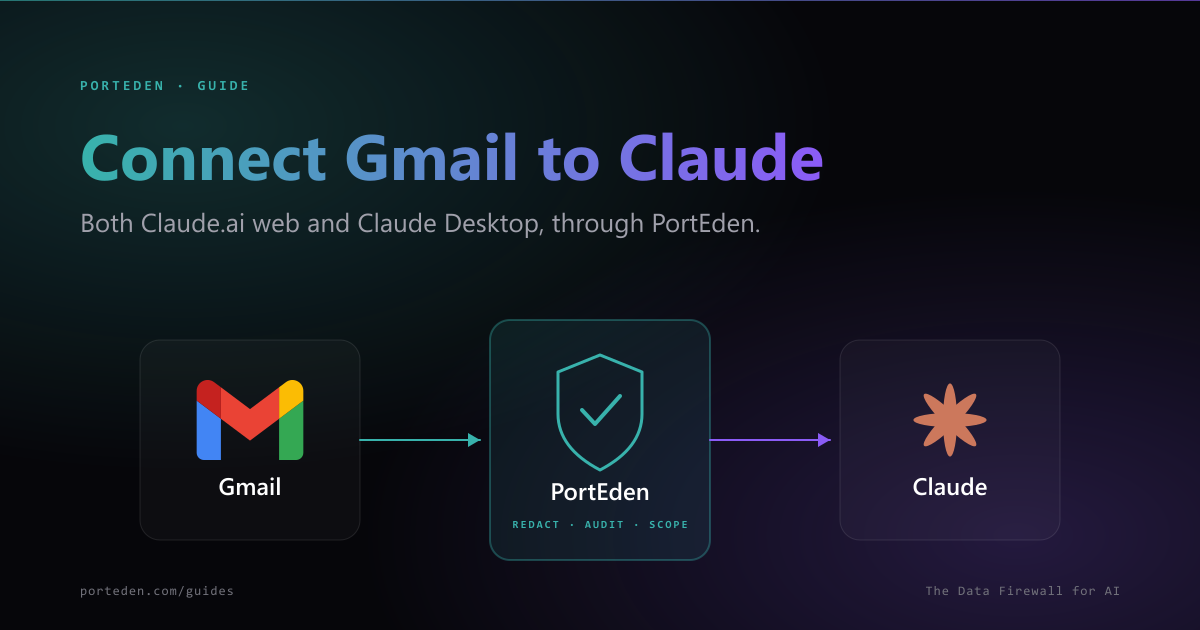
Two paths, one endpoint
What this unlocks
Once the connector is live, Claude can search and read your inbox, draft replies, send messages (with confirmation), and manage labels, all through a token PortEden creates automatically. Field-level redaction is on by default: names, email addresses, phone numbers, and 50+ other identifier types are stripped or tokenized before content leaves PortEden for Anthropic. Every tool call shows up in the PortEden audit log with the action, decision, and response shape.
Compared with using your raw Gmail OAuth token inside Claude (which Anthropic does not support directly for security reasons), routing through PortEden gives you:
- Independent revocation: revoke the Claude token without touching the Google connection.
- Per-AI scoping: a separate token for Claude, ChatGPT, Grok, and others.
- Redaction Claude cannot disable on its own.
- An audit trail you can hand to security review.
Prerequisites
| Item | Path A (Web) | Path B (Desktop) |
|---|---|---|
| Claude account | Pro, Max, Team, or Enterprise (Free is limited to 1 custom connector) | Any plan, including Free |
| Claude client | Browser at claude.ai | Claude Desktop installed |
| Local tools | None | Node.js (for npx mcp-remote) |
| Gmail account | Yes | Yes |
| PortEden account | Created during the auth window (one-click Google or email) | Same: created during the auth window on first connector use |
Org admin gating for Team/Enterprise on web
Choose your path
Both paths talk to the same PortEden MCP server, produce the same audit log entries, and respect the same access rules. Pick by environment, not by capability.
| Factor | Pick Web (Path A) | Pick Desktop (Path B) |
|---|---|---|
| You use Claude in a browser | ✓ | |
| You use Claude Desktop | ✓ | |
| You want shared org config | ✓ (one Owner adds it for everyone) | |
| You are on a Claude Free plan and need this connector | Limited (one custom connector) | ✓ |
| You prefer no local install | ✓ | |
| You already use mcp-remote for other servers | ✓ |
Path A: claude.ai (web)
Web connector form values
| Field | Value |
|---|---|
| Name | Gmail |
| URL | https://mcp.porteden.com/email |
| Advanced Settings | Leave empty (PortEden handles OAuth) |
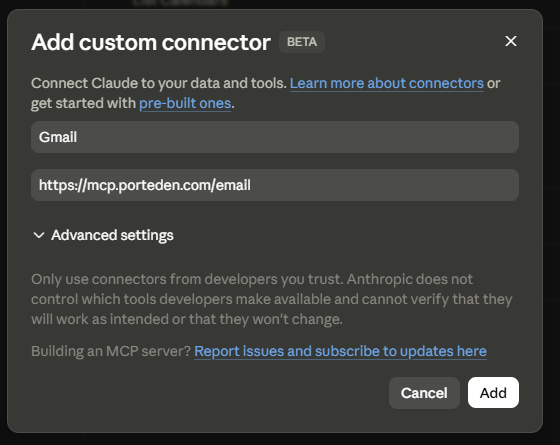
Claude will open a PortEden auth window on the first request that uses the connector. Continue at Step 3.
Path B: Claude Desktop
Claude Desktop's config supports local stdio MCP servers only. A small wrapper called mcp-remote runs via npx and bridges PortEden's remote endpoint into the local format Claude Desktop expects. You need Node.js installed.
mcpServers entry below.Config file paths
Windows
%APPDATA%\Claude\claude_desktop_config.jsonmacOS
~/Library/Application Support/Claude/claude_desktop_config.jsonLinux
~/.config/Claude/claude_desktop_config.jsonConfig to add
{ "mcpServers": { "Gmail": { "command": "npx", "args": ["mcp-remote", "https://mcp.porteden.com/email"] } } } Already have other mcpServers?
Gmail entry as a sibling key inside mcpServers. Make sure the resulting file is still valid JSON (commas in the right places).Step 3: Sign in to PortEden
On the first request that uses the connector (either path), PortEden opens an auth window in your browser. This is the only PortEden-side UI you will see.
Step 4: Authorize Gmail
This step runs only if PortEden does not already have Gmail connected for your account.
First-time users
Click Connect Gmail, complete Google's OAuth consent, and approve the requested scopes. Read by default; send and modify if you want Claude to draft and send.
Existing users
PortEden detects the existing Gmail connection and skips this step. Claude returns to the chat with the connector active in a couple of seconds.
Workspace accounts
gmail.readonly (default), plus gmail.send and gmail.modify when relevant.Step 5: Verify and tighten
Verify with a quick read
Open a new Claude conversation and ask:
Tighten the token (optional)
The token PortEden created for Claude defaults to email scope, redaction on, contact rules empty, and confirm-before-write for send and delete. Edit it at any time from my.porteden.com under Access Tokens.
Common adjustments
| Setting | When to change it |
|---|---|
| Permission preset | Switch from read_and_draft to read_send if you want Claude to send without staging drafts first |
| Contact blocklist | Add HR, legal, board, or therapy contacts you do not want any AI touching |
| Time window | Narrow to 30/60/90 days if Claude does not need historical inbox access |
| Label exclusions | Block Confidential, Legal, NDA labels |
| Confirm-before-write | Leave on for send and delete; turn off only for drafts if you want one-click drafting |
Suggested prompts
Claude tends to follow structured instructions and confirmation-style language particularly well. Try:
"Show me unread emails from the past 24 hours. Group into: urgent (mentions deadline or asks a question of me), responses awaited, and informational."
"Find the most recent email thread about the Q3 plan and give me a 5-bullet summary plus the unanswered open questions."
"Draft a polite reply to the latest email from Sarah declining the meeting and proposing two alternative times next week. Save it as a draft. Do not send."
"Send a short note to the design list confirming Friday 10am. Show me the full body and recipient list before sending."
"List emails I sent more than 5 working days ago that have not received a reply, with the recipient and subject."
"Identify recurring newsletters I have not opened in 30 days and propose a list to archive. Show me the list. I will confirm before any change."
Troubleshooting
Path A: web-specific
The Custom Connector option does not appear
Symptoms
- You do not see a '+' button at claude.ai/customize/connectors.
- claude.ai shows the directory connectors but no option to add a custom one.
Checks
- Confirm your plan: Pro, Max, Team, or Enterprise. Free users are limited to a single custom connector.
- For Team/Enterprise: only an Owner can add a custom connector from Organization Settings.
- If you are an Owner, the path is Settings > Organization Settings > Connectors, not the personal Customize panel.
Debug prompt for Claude
Auth window opens but never returns
Symptoms
- The PortEden auth window opens, you sign in, but Claude does not show the connector as active.
- The browser tab closes too quickly or hangs on a blank screen.
Checks
- Allow pop-ups for claude.ai in your browser.
- Open my.porteden.com in another tab, confirm you are signed in there, then retry the Claude request.
- Disable strict privacy extensions (e.g. third-party cookie blockers) for claude.ai temporarily.
- Try a fresh browser profile if a profile-level extension is blocking the redirect.
Debug prompt for Claude
Path B: desktop-specific
Claude Desktop ignores the connector after restart
Symptoms
- You added the mcpServers entry, restarted Claude Desktop, but the Gmail tools do not appear.
- Claude Desktop shows a startup error in the logs about MCP server configuration.
Checks
- Validate the config file with a JSON linter (a missing comma or unescaped quote is the most common issue).
- Make sure mcpServers is a top-level key, not nested inside another object.
- Confirm you fully quit Claude Desktop and reopened it, not just closed the window.
- Check the Claude Desktop logs (Settings > Developer > Open Logs Folder).
Debug prompt for Claude
npx or Node.js is not available
Symptoms
- Claude Desktop logs report 'command not found' or 'spawn npx ENOENT'.
- The connector starts to launch then fails immediately.
Checks
- Install Node.js (any LTS release). On Windows, the installer adds npx to PATH automatically; on macOS/Linux you may need to restart your shell.
- Run npx --version in a terminal to confirm it works outside Claude Desktop.
- If you use a node version manager (nvm, asdf, fnm), make sure the version it activates is also available to GUI applications, not just shells.
Debug prompt for Claude
Shared (both paths)
Claude cannot reach the PortEden MCP server
Symptoms
- Claude reports the connector is unavailable or timing out.
- Nothing appears in the PortEden audit log.
Checks
- Confirm the URL is exactly https://mcp.porteden.com/email (web form) or in the args array (desktop config).
- Check whether your network blocks outbound traffic to mcp.porteden.com.
- Visit status.porteden.com if available, or try the URL in a browser (it should return an MCP handshake response, not 404).
Debug prompt for Claude
403 Permission denied on a specific email or action
Symptoms
- Claude says it lacks permission, or reports an accessInfo string explaining a rule blocked the call.
- Audit log shows a block decision with a rule name.
Checks
- Open the token in PortEden and verify the action (send, delete, label) is enabled in the permission set.
- Check contact and label rules: a blocked sender or excluded label denies matching messages.
- Check the time window: requests outside the window are blocked.
Debug prompt for Claude
Gmail connection went stale
Symptoms
- Calls were working, then all email tool calls fail immediately.
- Audit log shows provider_reauth_required.
Checks
- Open my.porteden.com > Connections. Gmail will show a yellow Needs reauth badge.
- Click Reconnect and complete the Google OAuth flow again. This usually follows a Google password change or security event.
Debug prompt for Claude
Debug prompts
Claude is willing to quote raw tool responses when asked directly. Paste these when something is unclear.
The audit log is the source of truth
Security best practices
One token per AI per use case. Claude, ChatGPT, and Grok each get their own PortEden token. If one misbehaves, revoke just that one.
If you use both Path A (web) and Path B (desktop), they share the same token automatically. That is intentional; the user is the same, the Claude environment is the variable.
For Team/Enterprise web setups, the Owner-added connector is shared with all members. Make sure the underlying token's redaction and contact rules satisfy your most cautious user, not your most permissive one.
Start with read_and_draft. Send and delete are easy to add later when the workflow is proven.
Keep Confirm-before-write on for send and delete. Claude is good at proposing actions; you stay in the loop on destructive ones.
Review the audit log weekly. Filter by the Claude token to see what was asked, what was allowed, and what was blocked.
FAQ
Should I use Claude.ai web or Claude Desktop for Gmail access?
Use claude.ai web if you want zero local setup, work across devices, and prefer the same Connectors UI Anthropic ships natively. Use Claude Desktop if you want the connector available offline-of-the-web-UI, you already use mcp-remote for other servers, or your team standardized on Desktop. Both call the same PortEden endpoint and produce identical audit log entries.
Which Claude plan do I need for Custom Connectors on the web?
Per Anthropic's docs, Custom Connectors on claude.ai are available on Pro and Max individual plans, and on Team and Enterprise organization plans (where an Owner adds them centrally). Free users are limited to one custom connector. Claude Desktop's config-file path has no plan gating; it works for any Claude account.
What is mcp-remote and why does Claude Desktop need it?
Claude Desktop's MCP config supports local stdio-based servers. mcp-remote is a small wrapper, run via npx, that bridges remote MCP servers (like PortEden's) into the local stdio format Claude Desktop expects. You need Node.js installed for npx to work.
Does Anthropic train Claude on my Gmail content?
Anthropic's data use policy varies by plan tier. For paid Pro/Team/Enterprise plans, conversation data is generally not used to train models by default. PortEden reduces what Claude receives in the first place: PII is redacted, fields are minimized, and you can scope access to read-only, specific contacts, or time windows. Confirm Anthropic's current policy for your tier before relying on any training-related claim.
How does Claude know to use the PortEden connector for an email query?
Claude's tool selection reads the connector name plus the tool descriptions PortEden exposes via MCP. With the connector named 'Gmail', when you ask Claude something like 'summarize my unread email', it routes the call through this connector. Pick a name that matches user intent, not the gateway brand.
Can I use the same PortEden account across Claude, ChatGPT, Grok, and others?
Yes. PortEden issues a separate scoped Access Token per AI client, all backed by the same Google connection. Revoke one token without breaking the others. Each token has its own permissions, redaction rules, and audit trail entries.
Next steps
Connect Outlook to Claude
Same dual-path flow for Outlook and Microsoft 365.
Connect Google Drive to Claude
Add file search and read so Claude can find the doc you mean.
PortEden for Claude
Capabilities, pricing, and architecture for using Claude with PortEden.
MCP Email tool reference
Every email tool exposed by the PortEden MCP server.