Connect Outlook to Claude with PortEden
Bring Microsoft 365, Outlook.com, or Exchange Online mail into Claude. This guide covers both setup paths: the claude.ai Connectors panel and the Claude Desktop config file (via mcp-remote). Tenant admin consent is supported. PortEden redacts attendee identifiers and message content before anything reaches Anthropic, and every Microsoft Graph call is recorded in the PortEden audit log.
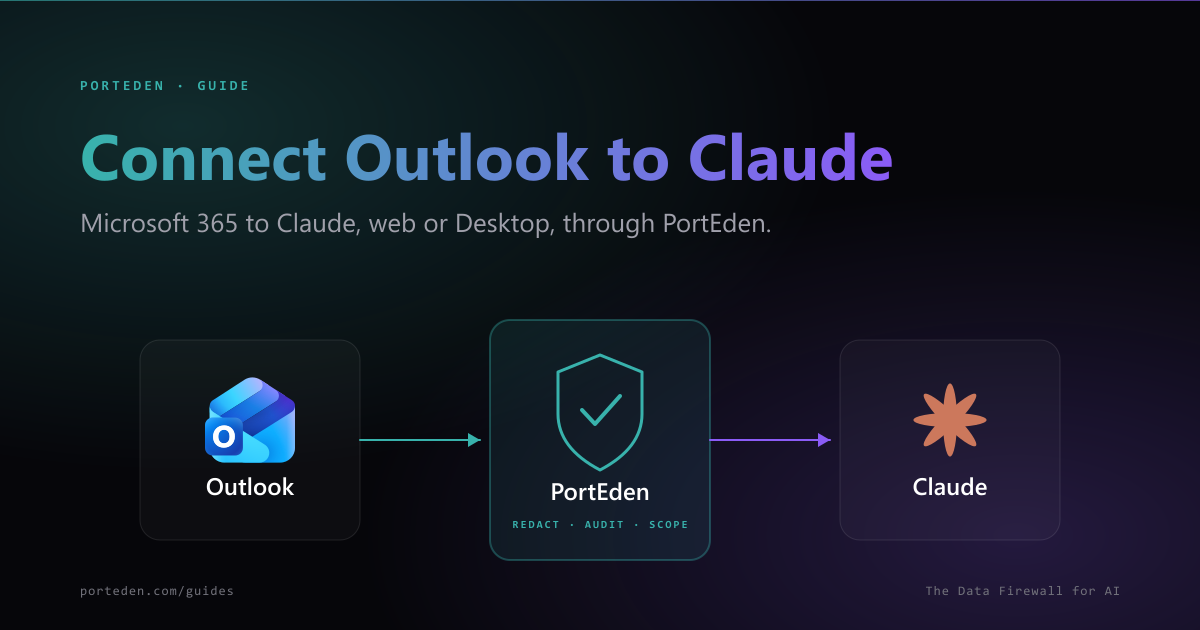
Two paths, one endpoint
What this unlocks
Once active, Claude can search and read your Outlook mailbox, draft replies, send messages (with confirmation), and move or categorize items. PortEden uses delegated Microsoft Graph scopes, so everything Claude does respects the user's native Microsoft permissions. Conditional access (MFA, device compliance) still applies. Mailbox content passes through PortEden's redaction layer before reaching Anthropic; full email addresses, phone numbers, and other identifiers are stripped or tokenized by default.
For regulated organizations specifically, three properties matter:
- An admin can pre-consent PortEden tenant-wide, so end users do not see consent dialogs they cannot complete.
- Folder-level exclusions (e.g. an Inbox subfolder named
LegalorHR) keep specific messages out of Claude's reach without needing to deny the entire Outlook capability. - The audit log captures every Graph call by user, action, decision, and response shape; exportable to SIEM.
Prerequisites
| Item | Path A (Web) | Path B (Desktop) |
|---|---|---|
| Claude account | Pro, Max, Team, or Enterprise | Any plan, including Free |
| Claude client | Browser at claude.ai | Claude Desktop installed |
| Local tools | None | Node.js (for npx mcp-remote) |
| Mailbox | Microsoft 365, Outlook.com, or Exchange Online | Same |
| Tenant admin | Only needed for Team/Enterprise: Owner adds the connector once | Not needed: per-user config |
| PortEden account | Created during the auth window | Same: created during the auth window on first use |
Tenant admin consent
AADSTS65001) and the connection will not complete. Admins can pre-consent from Microsoft Entra admin center > Enterprise applications.Choose your path
Both paths talk to the same endpoint and respect the same access rules. Pick by environment, not by capability.
| Factor | Pick Web (Path A) | Pick Desktop (Path B) |
|---|---|---|
| You use Claude in a browser | ✓ | |
| You use Claude Desktop on a work machine | ✓ | |
| IT centralizes connector approvals | ✓ (Owner adds once) | |
| You are on Claude Free | Limited | ✓ |
| Outlook account is locked to a managed device | ✓ (config travels with the device) | |
| You want shared org-wide deployment | ✓ |
Path A: claude.ai (web)
For Team/Enterprise (admins only): go to Settings > Organization Settings > Connectors.
Web connector form values
| Field | Value |
|---|---|
| Name | Outlook |
| URL | https://mcp.porteden.com/email |
| Advanced Settings | Leave empty (PortEden handles OAuth) |
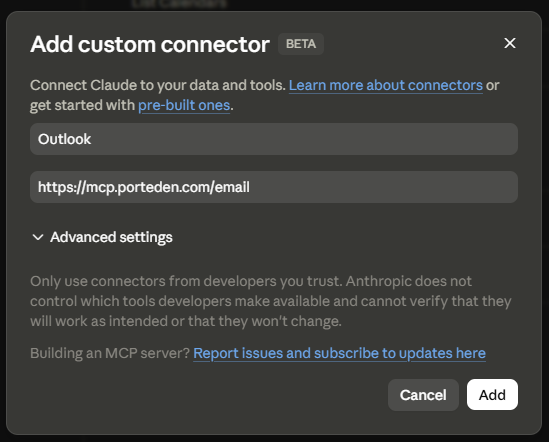
Continue at Step 3 when Claude opens the PortEden auth window on first use.
Path B: Claude Desktop
Claude Desktop needs mcp-remote (run via npx) to talk to remote MCP servers. Node.js must be installed.
mcpServers entry below.Config file paths
Windows
%APPDATA%\Claude\claude_desktop_config.jsonmacOS
~/Library/Application Support/Claude/claude_desktop_config.jsonLinux
~/.config/Claude/claude_desktop_config.jsonConfig to add
{ "mcpServers": { "Outlook": { "command": "npx", "args": ["mcp-remote", "https://mcp.porteden.com/email"] } } } Pair Outlook with Gmail on the same machine
Gmail entry as a sibling key inside mcpServers using the same URL. Claude picks between them by name during tool selection, so a user asking "check my Outlook" lands on the right one.Step 3: Sign in to PortEden
On the first request that uses the connector, PortEden opens an auth window in your browser.
Step 4: Authorize Outlook
This step runs only if PortEden does not already have Outlook (or Microsoft 365) connected for your account.
First-time users
Click Connect Outlook, complete Microsoft's OAuth consent, and approve the requested Graph scopes. Read by default; send and modify if you want Claude to draft and send.
Existing users
PortEden reuses the existing Outlook connection and skips the OAuth step. Claude returns to the chat in a couple of seconds.
Graph scopes PortEden requests
| Scope | Purpose |
|---|---|
| Mail.Read | List, search, and read messages and folders |
| Mail.Send | Send mail on behalf of the user (only when permission preset enables it) |
| Mail.ReadWrite | Move, categorize, archive; create and update drafts |
| offline_access | Allow PortEden to refresh the token without interactive sign-in |
| User.Read | Read the user's basic profile (display name, email) for audit log attribution |
Admin pre-consent
Step 5: Verify and tighten
Verify
Tighten the token (optional)
Defaults are conservative: email scope, attendee/recipient redaction, confirm-before-write on send and delete. Edit at my.porteden.com under Access Tokens.
Outlook-specific adjustments
| Setting | When to change it |
|---|---|
| Folder exclusions | Add subfolders that hold privileged content (Legal, HR, Finance close, NDA client work) |
| Category exclusions | If your team uses Outlook categories to tag sensitive items, exclude those categories |
| Time window | Restrict to last 30/60/90 days unless historical access is needed |
| Contact blocklist | Add board members, external counsel, and personal aliases |
| Permission preset | read_send only after the workflow is proven; read_and_draft keeps Claude in the Drafts folder |
Suggested prompts
These work well for typical Outlook workflows.
"Show me unread Outlook mail from the past 16 hours. Group into: needs my decision, FYI, and meeting confirmations."
"Find every email from contoso.com in the last 60 days. Group by thread and flag any thread where I have not replied in 5+ days."
"For each meeting on my calendar today, find any recent email thread with the attendees and produce a 3-bullet brief."
"Draft a reply to the latest email from my manager declining the meeting and proposing next Tuesday morning. Save as draft; do not send."
"Identify newsletters and bulk senders I have not opened in 30 days. Propose a list to move to Archive. I will confirm."
"Find emails where I was BCC-ed in the last 30 days and group them by sender. Useful for compliance review."
Troubleshooting
Most common: admin consent
Microsoft says admin approval is required
Symptoms
- The Microsoft consent screen shows 'Need admin approval' or returns AADSTS65001.
- The Connect Outlook step never completes for users on a managed tenant.
Checks
- Ask your Entra ID admin to grant tenant-wide consent for PortEden from the Microsoft Entra admin center > Enterprise applications.
- If you are an admin, retry the consent flow and use 'Consent on behalf of your organization' checkbox.
- Confirm the requested scopes (Mail.Read, Mail.Send, Mail.ReadWrite, offline_access, User.Read) are not blocked by tenant app consent policy.
Debug prompt for Claude
Path A: web-specific
The + button to add a connector is missing
Symptoms
- You are on a Team or Enterprise Claude plan and see directory connectors but no + to add a custom one.
Checks
- Only an Owner or Primary Owner can add custom connectors at the organization level. Confirm your role.
- If you are an Owner, the path is Settings > Organization Settings > Connectors, not the personal Customize panel.
- If you are not an Owner, ask one to add the connector centrally; once added, it appears for all members.
Debug prompt for Claude
Path B: desktop-specific
Claude Desktop ignores the connector after restart
Symptoms
- You added the mcpServers entry, restarted, but the Outlook tools do not appear in Claude Desktop.
Checks
- Validate the config file with a JSON linter (a missing comma is the usual culprit).
- Confirm mcpServers is a top-level key.
- Fully quit Claude Desktop (not just close window) before reopening.
- Check logs via Settings > Developer > Open Logs Folder for MCP startup errors.
Debug prompt for Claude
npx is not available
Symptoms
- Claude Desktop logs report 'command not found' or 'spawn npx ENOENT'.
Checks
- Install Node.js (any LTS release).
- Run npx --version in a terminal to confirm it works.
- If you use a node version manager (nvm, asdf, fnm), make sure GUI apps can also see the active version.
Debug prompt for Claude
Shared (both paths)
Claude cannot reach the PortEden MCP server
Symptoms
- Claude reports the connector is unavailable or timing out.
- Nothing appears in the PortEden audit log.
Checks
- Confirm the URL is exactly https://mcp.porteden.com/email.
- Check whether your network blocks outbound traffic to mcp.porteden.com.
- Visit the URL in a browser; it should return an MCP handshake response, not 404.
Debug prompt for Claude
429 Too Many Requests from Microsoft Graph
Symptoms
- Bursts of email operations start failing.
- Audit log shows graph_throttled entries.
Checks
- Microsoft Graph throttles per app, per user, per resource. Spread bursty work over time.
- Ask Claude to batch operations: list 50 messages in one call instead of 50 single gets.
- PortEden surfaces Microsoft's retry-after value in the response. Respect it.
Debug prompt for Claude
Outlook connection went stale
Symptoms
- Calls were working, then all Outlook tool calls fail.
- Audit log shows provider_reauth_required.
- Often follows a tenant conditional access change or password reset.
Checks
- Open my.porteden.com > Connections. Outlook shows a yellow Needs reauth badge.
- Click Reconnect and complete Microsoft OAuth again.
- If conditional access requires MFA, complete the MFA prompt during the reconnect.
Debug prompt for Claude
Debug prompts
Paste these into Claude when an error message is vague.
Audit log is the source of truth
Security best practices
On managed Microsoft 365 tenants, pair PortEden with a conditional access policy that requires MFA before granting mailbox scopes. PortEden honors the resulting session.
Exclude Legal, HR, Finance close, and named-client folders from the token via folder rules. The connector cannot see what the token does not allow.
For Team/Enterprise deployments, set the token rules at the most cautious user's level. The connector is shared; the rules should reflect that.
Keep Confirm-before-write on for send and delete. Claude is good at proposing actions; you stay in the loop.
Use the Outlook category system to mark messages PortEden should never show to AI. Configure category exclusion on the token.
Review the audit log weekly. Filter by the Claude token. Compliance-relevant events should be exported to your SIEM.
FAQ
Does this work with Microsoft 365, Outlook.com, and Exchange Online?
Yes. PortEden's email capability covers all three via Microsoft Graph. The MCP endpoint is the same: https://mcp.porteden.com/email. During Step 4's Microsoft OAuth, you sign in with the account type you have and PortEden routes to the right Graph endpoint automatically.
My tenant requires admin consent. What does PortEden request?
PortEden requests delegated Microsoft Graph scopes: Mail.Read, Mail.Send, Mail.ReadWrite, offline_access, and User.Read. An Entra ID admin can grant tenant-wide consent in advance from the Microsoft Entra admin center under Enterprise applications. Otherwise the consent dialog appears the first time a user tries to connect Outlook.
Which Claude plan do I need for Custom Connectors on the web?
Per Anthropic's docs, Custom Connectors on claude.ai are available on Pro, Max, Team, and Enterprise plans. Free users are limited to one custom connector. Claude Desktop's config-file path works for any Claude account, including Free, with no plan gating.
What if conditional access (MFA, device compliance) is enforced on my Microsoft tenant?
PortEden honors the underlying Microsoft session. If conditional access requires MFA or device compliance, the user completes those checks during Step 4 (Microsoft OAuth). The token PortEden receives inherits the resulting session's properties. If the policy later invalidates the session, you will see GMAIL_REAUTH_REQUIRED-style errors and need to reconnect.
Should I use the web path or Desktop path for Outlook?
Use the web path if your team's IT centralizes connector approvals through Claude's Team/Enterprise admin console. Use the Desktop path if you want per-machine control or if you are on Claude Free. Both call the same PortEden endpoint and produce identical audit log entries; the choice is environmental, not functional.
Can I connect both Outlook and Gmail to Claude?
Yes. Add two connectors pointing at https://mcp.porteden.com/email, named Outlook and Gmail respectively. During each PortEden sign-in, the provider you connect determines which mailbox that connector talks to. Claude picks between them by name when you ask things like 'check my Outlook inbox'.
Next steps
Connect Gmail to Claude
Same dual-path flow for personal Gmail or Google Workspace.
Connect Google Drive to Claude
Add file search and read for cross-platform file access.
PortEden for Claude
Capabilities, pricing, and architecture for using Claude with PortEden.
Risks of connecting email to AI
A regulator-aware look at what can go wrong, and how PortEden mitigates each risk.