Connect Google Drive to Claude with PortEden
Give Claude scoped access to Google Drive files. This guide covers both Claude paths: claude.ai web (no install) and Claude Desktop (config file via mcp-remote). The default token is block-all: Claude sees no files until you add Drive Rules for specific folders or file IDs. That is intentional. Drive is the highest-blast-radius capability, so PortEden defaults to maximum containment and you opt in to what Claude can see.
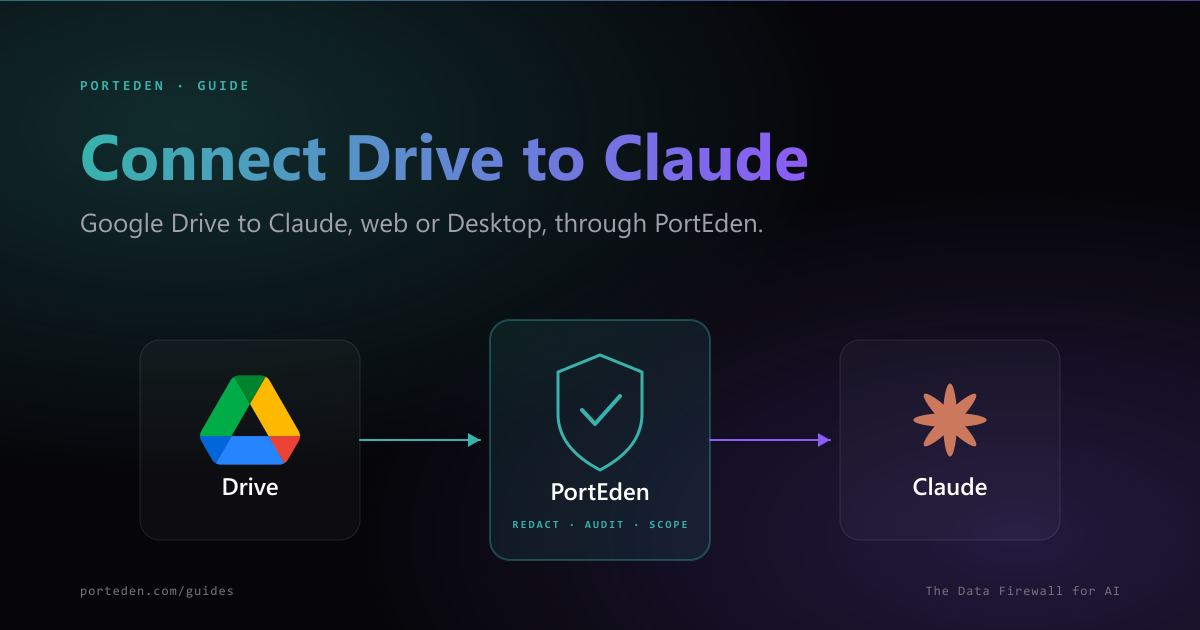
Two paths, one endpoint
What this unlocks
Once active, Claude can search files by name or content, read metadata (owner, modified date, size, sharing), download or export Workspace files (Docs → PDF/DOCX, Sheets → XLSX/CSV), and (with the right scope) upload, rename, move, or trash. Drive Rules constrain every operation: by file ID, by folder, by MIME type. Block rules override allow rules, so even broad access can have surgical exclusions.
Drive differs from email and calendar in one practical way: the blast radius of a wrong action is large (you can lose or expose a lot at once). PortEden's defaults reflect that:
- Read-only permissions by default; writes require an explicit preset change.
- Block-all Drive Rules by default; Claude sees nothing until you add allow rules.
- Confirm-before-write on delete, share, and move (when those scopes are enabled).
- Upload size cap of 100 MB per token by default; lower if Claude should not push large files.
Prerequisites
| Item | Path A (Web) | Path B (Desktop) |
|---|---|---|
| Claude account | Pro, Max, Team, or Enterprise | Any plan, including Free |
| Claude client | Browser at claude.ai | Claude Desktop installed |
| Local tools | None | Node.js (for npx mcp-remote) |
| Google account | With access to the Drive files you want Claude to use | Same |
| PortEden account | Created during the auth window | Same |
| At least one Drive Rule | Yes (default token is block-all) | Yes |
Drive Rules are not optional
Choose your path
| Factor | Pick Web (Path A) | Pick Desktop (Path B) |
|---|---|---|
| Most of your work is in claude.ai browser | ✓ | |
| You use Claude Desktop on a managed work laptop | ✓ | |
| You want IT/admin to deploy connector once for all members | ✓ | |
| You are on Claude Free | Limited (1 custom connector) | ✓ |
| You frequently pair Claude with local files via Drive | ✓ (closer to local fs) | |
| You access Drive from multiple devices | ✓ |
Path A: claude.ai (web)
Web connector form values
| Field | Value |
|---|---|
| Name | Google Drive |
| URL | https://mcp.porteden.com/drive |
| Advanced Settings | Leave empty (PortEden handles OAuth) |
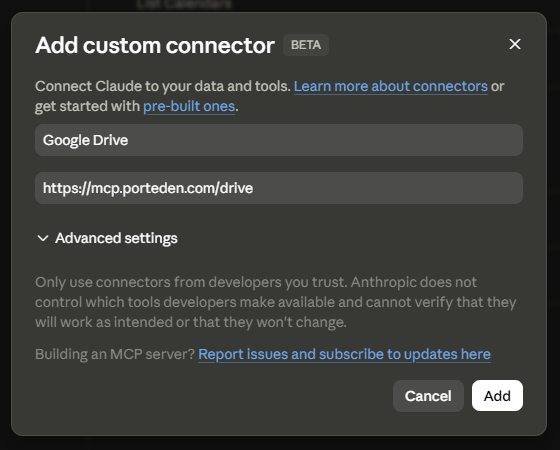
Continue at Step 3.
Path B: Claude Desktop
Claude Desktop needs mcp-remote to bridge the remote PortEden endpoint into local stdio. Node.js must be installed.
mcpServers entry below.Config file paths
Windows
%APPDATA%\Claude\claude_desktop_config.jsonmacOS
~/Library/Application Support/Claude/claude_desktop_config.jsonLinux
~/.config/Claude/claude_desktop_config.jsonConfig to add
{ "mcpServers": { "Google Drive": { "command": "npx", "args": ["mcp-remote", "https://mcp.porteden.com/drive"] } } } Stacking Drive + Docs + Sheets on Desktop
mcpServers: Google Drive, Google Docs, Google Sheets. They share the same Google connection on PortEden's side.Step 3: Sign in to PortEden
On the first request that uses the connector, PortEden opens an auth window.
Step 4: Authorize Google
This step runs only if PortEden does not already have Google connected for your account.
First-time users
Click Connect Google and complete Google's OAuth consent. Choose the scope level that matches your intent (see below).
Existing users
PortEden reuses the existing Google connection and skips OAuth. Drive, Docs, and Sheets all ride on the same underlying connection.
Drive OAuth scope choices
| Scope | What it allows | When to pick it |
|---|---|---|
| drive.readonly | Read everything the user can read | Claude only searches and reads; no uploads or modifications |
| drive | Read + full write (upload, rename, move, delete, share) | Claude needs to act on files |
| drive.file | Read + write, but only files the user pre-authorized at OAuth time | Strongest containment; pair with PortEden Drive Rules for defense in depth |
Step 5: Add Drive Rules and verify
The default token is block-all. Open my.porteden.com > Access Tokens, find the Claude token, and add at least one allow rule.
Recommended starting configuration
{ "allowedDriveOperations": "read_only", "driveAllowAll": false, "driveRules": [ { "ruleType": "folder", "pattern": "google:0B7_WORKING_FOLDER", "action": "allow" } ] } Replace 0B7_WORKING_FOLDER with the folder ID from your Drive URL. To grant broader access with surgical exclusions instead, flip driveAllowAll to true and add block rules:
{ "allowedDriveOperations": "read_only", "driveAllowAll": true, "driveRules": [ { "ruleType": "folder", "pattern": "google:0B7_HR_FOLDER", "action": "block" }, { "ruleType": "folder", "pattern": "google:0B7_LEGAL_FOLDER", "action": "block" }, { "ruleType": "mime_type", "pattern": "application/vnd.google-apps.spreadsheet", "action": "block" } ] } Verify
Audit log shows what was allowed and what was blocked
Suggested prompts
"Find files in my Drive with "Q3 OKRs" in the title. List the three most recent with their owner and last-modified date."
"Search my allowed folders for docs that mention "supply chain risk" and give me a one-line summary of each."
"In the Inbox folder, list all PDFs and propose moving them to the Reading list folder. Show the list. I will confirm."
"Show me the sharing settings on the Board pack folder. Who has edit, view, and any external access."
"Export the Q2 plan doc to PDF and give me the download link."
"List files in my Drive that were shared externally in the last 30 days. Flag any in folders that should be internal-only."
Troubleshooting
Most common: block-all default
Claude says it cannot find any files
Symptoms
- Claude says "I do not have access to any files in your Drive" or returns empty searches.
- Audit log shows search calls returning empty due to block-all mode.
Checks
- This is the default. Open the token in PortEden and add at least one allow rule (folder, file ID, or MIME type).
- If you intended broad access, switch driveAllowAll to true and add block rules for sensitive folders.
- Confirm the user actually has files in the scope you allowed. Drive Rules cannot create access; they can only narrow what the underlying Google permissions grant.
Debug prompt for Claude
Path A: web-specific
Claude does not show a file picker
Symptoms
- You expected a Drive file picker UI, but Claude just searches by name in chat.
Checks
- PortEden's MCP exposes Drive as tool calls, not a Claude-native file picker. Claude searches by name and returns candidates inline.
- Ask Claude to 'find the file titled X' rather than expecting to pick visually.
- If you want a UI picker, that is a Claude product feature for first-party connectors only.
Debug prompt for Claude
Path B: desktop-specific
Claude Desktop ignores the connector after restart
Symptoms
- You added the mcpServers entry, restarted, but the Drive tools do not appear.
Checks
- Validate the config as JSON. Trailing commas or missing quotes are the usual culprits.
- Make sure mcpServers is a top-level key.
- Fully quit Claude Desktop (not just close the window) before reopening.
- Check Settings > Developer > Open Logs Folder for MCP startup errors.
Debug prompt for Claude
npx not found
Symptoms
- Claude Desktop logs report 'command not found' or 'spawn npx ENOENT'.
Checks
- Install Node.js (LTS).
- Run npx --version in a terminal to verify.
- If you use nvm/asdf/fnm, ensure the active node is visible to GUI applications.
Debug prompt for Claude
Shared (both paths)
Claude can find a file in search but cannot read it
Symptoms
- Claude lists a file in search results but returns file_not_allowed when reading.
- Audit log shows a block decision with rule type drive_rule.
Checks
- The file matched a search via Google's index but the token's Drive Rule blocks it. This is a real edge case if the rule is by folder and the file lives outside that folder.
- Add the file's parent folder to the allow rules, or scope the search to that folder.
- If using drive.file OAuth scope, the file must have been individually authorized at OAuth time.
Debug prompt for Claude
Claude refuses to write, move, upload, or delete
Symptoms
- Claude says it lacks permission for a write action.
- Audit log shows a block decision on the write call.
Checks
- The default preset is read_only. Switch to read_and_organize, read_and_upload, or full_drive as needed.
- Confirm the user has write access in Google Drive (PortEden does not bypass Google's sharing).
- Destructive actions (delete, share) are gated by confirm-before-write; let Claude surface the preview first.
Debug prompt for Claude
Google connection went stale
Symptoms
- Calls were working, then all Drive tool calls fail.
- Audit log shows provider_reauth_required.
Checks
- Open my.porteden.com > Connections. Google shows a yellow Needs reauth badge.
- Click Reconnect and complete Google OAuth again.
Debug prompt for Claude
Debug prompts
When the error message is vague, paste these into Claude.
The audit log shows what was allowed and what was blocked
Security best practices
Keep the default block-all. Add allow rules per use case rather than granting broad access then trying to block sensitive areas.
Prefer drive.file OAuth scope + PortEden Drive Rules for the strongest containment. The user pre-authorizes specific files at OAuth time and PortEden enforces additional rules on top.
For broader access, always pair driveAllowAll: true with explicit block rules for HR, Legal, Finance close, and personal folders.
Keep delete and share scopes off unless Claude truly needs them. Read-only covers most analyst-style workflows.
Confirm-before-write should stay on for any write-capable token. Claude is good at proposing actions; you should still approve destructive ones explicitly.
For organizational deployments (Team/Enterprise web path), the connector is shared across all members. Set token rules at the most cautious user's level, not the most permissive.
Lower max_upload_bytes from the 100 MB default if Claude has no business creating large files. Tighter caps catch automation mistakes early.
Review the audit log weekly. Filter by the Claude token. Files Claude touched are listed by ID; cross-reference any unexpected file IDs.
FAQ
Why does Claude say it cannot find any files even though my Drive is full?
PortEden's default Drive token is block-all: Claude cannot see any file until you add an allow rule. This is intentional. Open the token in my.porteden.com and add a Drive Rule for the folder Claude should see, or set driveAllowAll to true with explicit block rules for sensitive folders.
Can Claude access files in Shared Drives?
Yes. Shared Drives appear when the user has access. Permissions inside the Shared Drive still apply: a Content Manager role lets Claude read and modify; Viewer is read-only. PortEden's Drive Rules apply on top, so you can scope Claude to a specific Shared Drive folder regardless of broader access.
Does Claude know how to find the file I mean by name?
Yes. Claude is good at calling search_files with the user's phrase, getting candidates, and asking for clarification if ambiguous. PortEden never lets Claude operate on a file ID the user did not authorize, so the worst case is Claude asks you to confirm which file you meant.
Should I use the claude.ai web path or Claude Desktop for Drive?
Use the web path if you want shared org config or you already work in claude.ai. Use Desktop if you want to keep Drive access tied to a specific machine, or you are on Claude Free. Both call the same PortEden endpoint and produce identical audit log entries.
Can Claude delete files?
Only if you grant the delete scope, which is off by default. Even with delete granted, files move to Trash (not permanent delete), and confirm-before-write forces Claude to surface the file list before any delete call.
Can I pair Drive with Docs or Sheets in Claude?
Yes. Add them as separate Custom Connectors in Claude, named Google Docs and Google Sheets. They share the same Google OAuth connection on PortEden's side, so no extra authorization is needed.
Next steps
Connect Gmail to Claude
Pair Drive with Gmail so Claude can find a file and forward it in one flow.
Connect Outlook to Claude
For Microsoft 365 environments. Pair with Drive for cross-cloud workflows.
Drive API reference
Every Drive endpoint with request and response examples.
Risks of connecting Drive to AI
A regulator-aware look at what can go wrong, and how PortEden mitigates each risk.