Connect Google Calendar to Claude with PortEden
Give Claude scoped access to your Google Calendar. This guide covers both Claude paths: claude.ai web (no install) and Claude Desktop (config file via mcp-remote). Attendee email addresses are redacted before they reach Anthropic. Confirm-before-write protects create, update, and delete actions, so Claude never quietly cancels a meeting or mass-invites people.
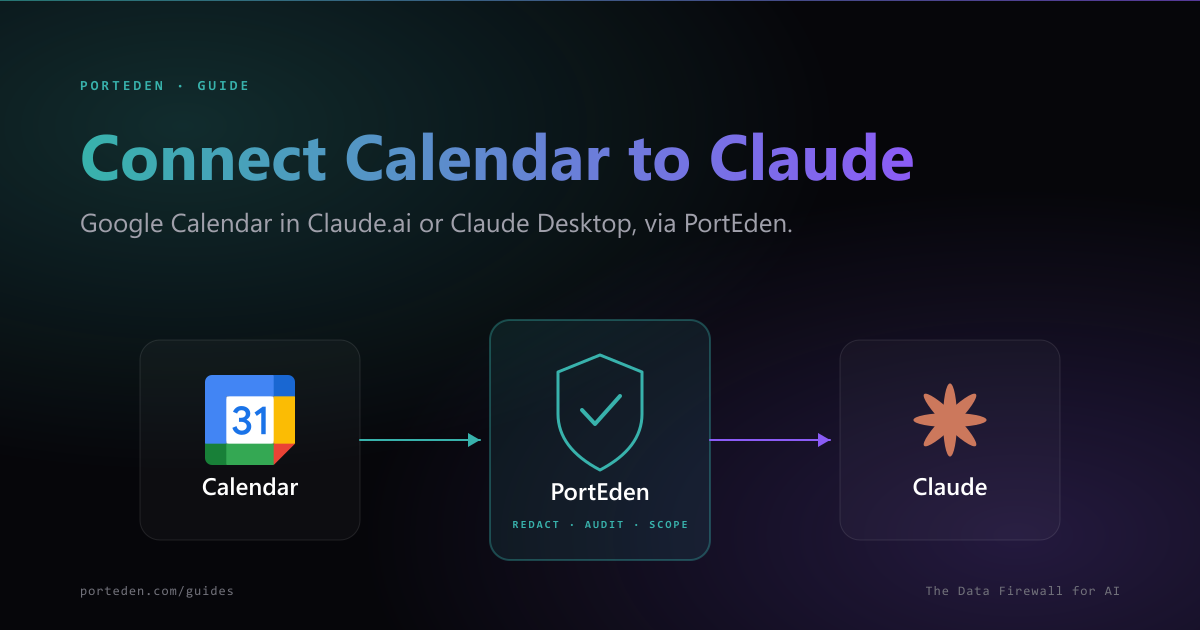
Two paths, one endpoint
What this unlocks
Once active, Claude can answer scheduling questions, find meeting slots across calendars you have access to, and (with the right permissions) create, update, or cancel events. PortEden ships the connector with attendee email redaction on by default, so Claude sees who is invited but not where to reach them. Confirm-before-write is on for create, update, and delete, which means Claude must surface a preview of the change before any modification.
Compared to letting Claude read your raw Google Calendar OAuth, routing through PortEden adds:
- Per-AI revocation (revoke Claude without breaking the Google connection).
- Recurring-meeting safety: every modification must specify single instance, all future, or whole series.
- Calendar scope: limit Claude to your primary calendar, or specify a list.
- Time window: restrict reads to a recent range so historical meetings stay out of context.
- Audit log per tool call, with the action, decision, and response shape.
Prerequisites
| Item | Path A (Web) | Path B (Desktop) |
|---|---|---|
| Claude account | Pro, Max, Team, or Enterprise | Any plan, including Free |
| Claude client | Browser at claude.ai | Claude Desktop installed |
| Local tools | None | Node.js (for npx mcp-remote) |
| Google account | With Calendar access | Same |
| PortEden account | Created during the auth window | Same |
No PortEden account yet? That is fine.
Choose your path
| Factor | Pick Web (Path A) | Pick Desktop (Path B) |
|---|---|---|
| You check your calendar from a browser | ✓ | |
| You use Claude Desktop on a managed work laptop | ✓ | |
| You want IT/admin to deploy the connector once for the org | ✓ | |
| You are on Claude Free | Limited (1 custom connector) | ✓ |
| You want offline-capable access from a single device | ✓ | |
| You access Calendar from multiple devices | ✓ |
Path A: claude.ai (web)
Web connector form values
| Field | Value |
|---|---|
| Name | Google Calendar |
| URL | https://mcp.porteden.com/calendar |
| Advanced Settings | Leave empty (PortEden handles OAuth) |
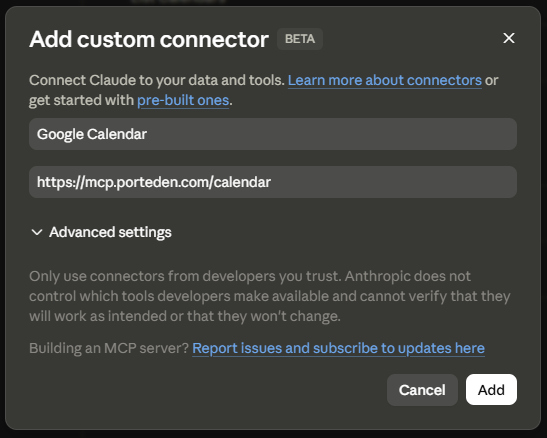
Continue at Step 3.
Path B: Claude Desktop
Claude Desktop needs mcp-remote to bridge the remote PortEden endpoint into local stdio. Node.js must be installed.
mcpServers entry below.Config file paths
Windows
%APPDATA%\Claude\claude_desktop_config.jsonmacOS
~/Library/Application Support/Claude/claude_desktop_config.jsonLinux
~/.config/Claude/claude_desktop_config.jsonConfig to add
{ "mcpServers": { "Google Calendar": { "command": "npx", "args": ["mcp-remote", "https://mcp.porteden.com/calendar"] } } } Pair Calendar with Gmail on the same machine
Gmail entry as a sibling key inside mcpServers. Claude picks between them by name during tool selection, so a user asking "what meetings do I have?" lands on Calendar and "summarize my unread email" lands on Gmail. The PortEden side shares one Google connection.Step 3: Sign in to PortEden
On the first request that uses the connector, PortEden opens an auth window.
What the default token looks like
Step 4: Authorize Google
This step runs only if PortEden does not already have Google connected for your account. Calendar, Gmail, Drive, Docs, and Sheets all ride on the same underlying Google connection.
First-time users
Click Connect Google and complete OAuth consent. Approve the Calendar scopes you need (see below).
Existing users
PortEden reuses the existing Google connection and skips OAuth. Claude returns to the chat with the connector active.
Calendar OAuth scope choices
| Scope | What it allows |
|---|---|
| calendar.readonly | List events, read details, query free/busy |
| calendar.events | Read plus create, update, delete events |
| calendar | Full calendar access including settings and sharing |
Match scope to permission preset
calendar.readonly at the OAuth level. The OAuth scope is a hard ceiling: even if you later grant Claude write permissions in the token, Google will refuse if the OAuth scope is read-only. Re-consenting with a broader scope is a 30-second flow.Step 5: Verify and tighten
Verify
Tighten the token (optional)
Defaults are conservative. Adjust at my.porteden.com under Access Tokens.
Permission presets
Pick the action set that matches what you want Claude to do
| Preset | What Claude can do | What it cannot do |
|---|---|---|
| read_only | List, search, read events; check free/busy | Create, update, delete, or invite |
| read_and_freebusy (default) | Read events plus query free/busy across calendars | Modify events |
| read_and_create | Read plus create new events with attendees | Delete or modify existing events |
| full_calendar | All event actions including delete and recurring updates | Touch other PortEden capabilities (email, drive) |
Other rules worth tightening
- Attendee redaction: Leave on. Claude still sees who is in the meeting (by display name), not their email address.
- Calendar scope: Limit Claude to your primary calendar. Personal calendars (medical, family) usually do not belong in an AI workflow.
- Time window: Rolling 30 to 60 days covers most assistant tasks. Avoid granting full history.
- Contact blocklist: Add board members, legal contacts, or therapists you do not want any AI touching.
- Confirm-before-write: Keep on for delete and update. Optional for create if you trust the workflow.
Changes apply immediately
Suggested prompts
"Please summarize my day. Group meetings into focus blocks, internal syncs, and external calls. Flag anything where I am the only required attendee."
"Find three free 30-minute slots next week between 10am and 4pm, excluding Fridays. Avoid the 30 minutes after lunch and before EOD."
"Move my 3pm Thursday meeting with the design team to 11am Friday. Show me the meeting details and the update message before sending. Do not send without confirmation."
"List my recurring meetings, with how often they meet and total hours per week. Group by purpose so I can see where my time goes."
"Do I have any back-to-back meetings tomorrow with no buffer? If yes, propose 10-minute breaks I could insert. Show the changes; do not apply."
"Schedule a 30-minute Q3 planning kickoff next Tuesday at 2pm with the engineering list. Title: Q3 planning. Confirm with me before sending."
Troubleshooting
Path A: web-specific
The + button to add a custom connector is missing
Symptoms
- You opened claude.ai/customize/connectors but see no + button.
Checks
- Confirm your plan: Pro, Max, Team, or Enterprise. Free users are limited to one custom connector.
- For Team/Enterprise: only an Owner can add custom connectors from Settings > Organization Settings > Connectors.
- If you are an Owner, the path is Organization Settings, not the personal Customize panel.
Debug prompt for Claude
Path B: desktop-specific
Claude Desktop ignores the connector after restart
Symptoms
- You added the mcpServers entry, restarted, but the Calendar tools do not appear.
Checks
- Validate the config as JSON. Trailing commas or unescaped quotes are the usual culprits.
- Confirm mcpServers is a top-level key.
- Fully quit Claude Desktop (not just close the window) before reopening.
- Check Settings > Developer > Open Logs Folder for MCP startup errors.
Debug prompt for Claude
npx not found
Symptoms
- Claude Desktop logs report 'command not found' or 'spawn npx ENOENT'.
Checks
- Install Node.js (LTS).
- Run npx --version in a terminal to verify.
- If you use nvm/asdf/fnm, ensure the active node is visible to GUI applications.
Debug prompt for Claude
Shared (both paths)
Claude did not specify single instance vs series
Symptoms
- An update or delete on a recurring meeting fails with a recurring_target_required error.
- Audit log shows the request was blocked because the target (single, future, or all) was not specified.
Checks
- Ask Claude to clarify which instance or scope the change applies to.
- Re-run the request with explicit language like 'this Friday's instance only' or 'this and all future occurrences'.
- If you want Claude to default to single-instance, set recurring_default on the token in PortEden.
Debug prompt for Claude
Claude cannot reach the PortEden MCP server
Symptoms
- Claude reports the connector is unavailable or timing out.
- Nothing appears in the PortEden audit log.
Checks
- Confirm the URL is exactly https://mcp.porteden.com/calendar.
- Check whether your network blocks outbound traffic to mcp.porteden.com.
- Visit the URL in a browser; it should return an MCP handshake response, not 404.
Debug prompt for Claude
403 Permission denied on a specific event or action
Symptoms
- Claude says it lacks permission, or returns an accessInfo string explaining a rule blocked the call.
- Audit log shows a block decision with a rule name.
Checks
- Open the token in PortEden and confirm the action (create_event, delete_event) is in the permission set.
- Check the calendar scope: a token limited to the primary calendar denies requests against secondary ones.
- Check the time window: requests outside the allowed window are blocked.
Debug prompt for Claude
Google connection went stale
Symptoms
- Calls were working, then all Calendar tool calls start failing.
- Audit log shows provider_reauth_required.
Checks
- Open my.porteden.com > Connections. Google shows a yellow Needs reauth badge.
- Click Reconnect and complete Google OAuth again. This usually follows a password change or security event.
Debug prompt for Claude
Debug prompts
When the error message is vague, paste these into Claude.
Audit log is the source of truth
Security best practices
One token per AI per use case. If Claude misbehaves, revoke just the Claude token; ChatGPT and Grok keep working.
Start with read_and_freebusy. Add create or delete only after you trust the workflow.
Keep attendee redaction on. Claude sees display names, not email addresses. Sharing the chat does not leak contacts.
Restrict to your primary calendar unless Claude genuinely needs the others. Personal calendars (medical, family) usually do not belong in any AI workflow.
Keep Confirm-before-write on for delete. Cancelling a meeting by mistake is loud and embarrassing.
For Team/Enterprise web deployments, the connector is shared across all members. Set token rules at the most cautious user's level.
Review the audit log weekly. Filter by the Claude token. Calendar reads/writes are listed by event ID; cross-reference any surprises.
FAQ
Should I use the claude.ai web path or Claude Desktop for Calendar?
Use claude.ai web if you check your calendar from a browser, want shared org config (Team/Enterprise), or are not interested in local setup. Use Claude Desktop if you prefer the connector tied to a specific machine, you are on Claude Free, or you already use mcp-remote for other servers. Both call the same PortEden endpoint and produce identical audit log entries.
Can Claude create or move events on my behalf?
Yes, if you grant the create or update permissions in the token. Confirm-before-write is on by default for create, update, and delete, so Claude surfaces a preview before any change. The audit log records every change.
What about recurring meetings?
Claude can read recurring events including individual instances. To modify a recurring meeting, Claude must specify whether the change applies to a single instance, all future occurrences, or the whole series. PortEden enforces this distinction; without an explicit target, the call is rejected with a recurring_target_required error.
Does Claude see free/busy for people I share with?
Yes, but only for people whose free/busy is already shared with your Google account. PortEden does not bypass Google's sharing model. If you cannot see Alice's free/busy in Google Calendar, Claude cannot either.
Can I pair Calendar with Gmail for scheduling workflows?
Yes. Add both connectors (Google Calendar at https://mcp.porteden.com/calendar and Gmail at https://mcp.porteden.com/email). Claude can find a free slot in Calendar, draft a meeting confirmation in Gmail, and send it, all in one conversation. Each tool call lands in the PortEden audit log under its own connector name.
Which Claude plan do I need for Custom Connectors on the web?
Per Anthropic's docs, Custom Connectors on claude.ai are available on Pro, Max, Team, and Enterprise plans. Free users are limited to one custom connector. Claude Desktop's config-file path has no plan gating; it works for any Claude account.
Next steps
Connect Gmail to Claude
Pair Calendar with Gmail so Claude can both find slots and follow up by email.
Connect Google Drive to Claude
Add file search so Claude can pull meeting prep docs into the conversation.
PortEden for Claude
Capabilities, pricing, and architecture for using Claude with PortEden.
Risks of connecting calendar to AI
A regulator-aware look at what can go wrong, and how PortEden mitigates each risk.