Secure Grok Google Docs Connection with PortEden
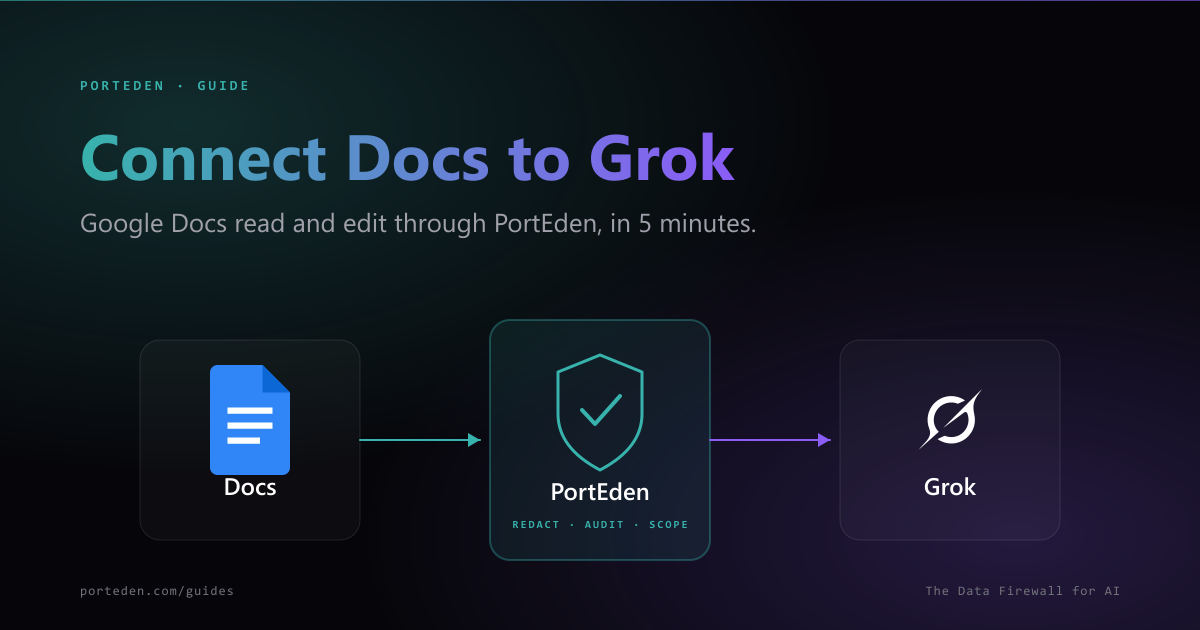
This guide sets up a secure Grok and Google Docs connection using PortEden as the data firewall. You add one Custom MCP URL in Grok, sign in, and Grok can read documents, draft sections, find-and-replace text, and create new docs through scoped permissions. Confirm-before-write is on by default for edits, and every tool call is recorded in the PortEden audit log.
In short
- Start in Grok. Add one Custom MCP URL:
https://mcp.porteden.com/google-docs - PortEden's auth window opens. Sign in or sign up in one click.
- If Google Drive is already connected to your PortEden account, Docs rides on it. No extra OAuth.
- Default is read plus draft mode with confirm-before-write on edits.
What you get
When the connection is live, Grok can read, summarize, and edit your Google Docs. Every tool call routes through PortEden, which applies:
Read document content
Get the full text of a doc, paragraph by paragraph, with headings and lists preserved. Useful for summarization and Q&A.
Draft and edit
Insert paragraphs, append sections, find-and-replace text, and apply basic formatting. Confirm-before-write surfaces a preview by default.
Create new docs
Create a fresh doc from a Grok response. Pin new docs to a specific folder via the token's default_folder setting.
Per-folder scoping
Limit a token to a single doc, a list of doc IDs, or a folder. Grok cannot reach anything outside the allowed scope.
Prerequisites
- A Grok account at grok.com on a plan that supports Connectors and Custom MCP.
- A Google account with access to the Docs you want Grok to use.
No PortEden account yet? That is fine.
Step 1: Add the PortEden MCP Connector in Grok
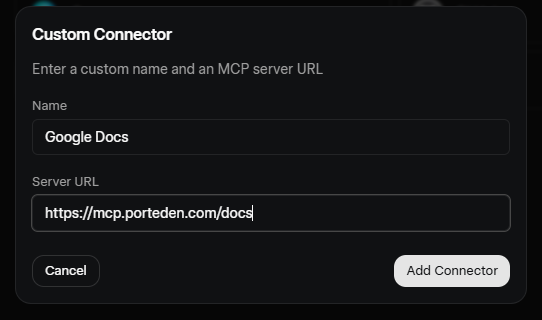
Start in Grok. PortEden runs a hosted MCP server you can connect with one URL.
Connector values
| Field | Value |
|---|---|
| Connector name | Google Docs |
| MCP server URL | https://mcp.porteden.com/google-docs |
| Authentication | OAuth (handled by PortEden) |
Step 2: Sign in to PortEden
When Grok enables the connector, it opens a PortEden auth window.
What the token looks like
Step 3: Connect Google (first-time only)
Google Docs access uses the same Drive scope as PortEden's other Google capabilities. If your PortEden account already has Google Drive connected, this step is skipped automatically.
If Google is not connected yet
If Google is already connected to PortEden
You will not see a Google authorization prompt. PortEden attaches the existing connection to the new Grok token and returns you to Grok.
Scopes
drive.readonly. For editing and creating docs, PortEden requests drive plus documents. For per-file authorization without broad Drive access, use drive.file.Step 4: Verify the connection
Open a new Grok chat and run a low-risk read prompt. Then check the PortEden audit log.
Try one of these
What to confirm
- Grok returns real text from your docs, with paragraphs and headings intact.
- The PortEden audit log at my.porteden.com shows the request with a green allow decision.
No data yet? Ask Grok to introspect
list_docs, read_doc, insert_text, find_replace, and create_doc.Step 5: Tighten what Grok can do (optional)
The default token is conservative. Once you trust the workflow, you can grant edit access on existing docs or expand the doc scope. Edit at my.porteden.com under Access Tokens.
Permission presets for Grok
Pick the action set that matches what you want Grok to do
| Preset | What Grok can do | What it cannot do |
|---|---|---|
| read_only | List docs, read content, search inside docs | Edit, create, or delete anything |
| read_and_draft (default) | Read plus create new docs in a designated folder | Edit existing docs |
| edit_existing | Read plus insert, append, and find-and-replace text in existing docs | Delete docs |
| full_docs | All doc operations including create, edit, and delete | Touch other PortEden capabilities (email, calendar) |
Recommended rules for a Grok token
- Per-folder scope: Add a Drive Rule that allows a specific folder of working docs. Personal docs (journals, drafts of personal letters) stay out of reach.
- Default folder for drafts: Pin newly created docs to a designated folder so they do not end up scattered across My Drive.
- Confirm before edit: Keep on for find-and-replace, insert, and append. Grok surfaces the proposed change before it touches the doc.
- Comments scope off: Leave the comments scope off unless Grok genuinely needs to comment. It is easy to miss notifications from AI comments.
- Doc allowlist: For high-sensitivity work (legal drafts, board docs), use an explicit doc allowlist instead of a folder scope.
Changes apply immediately
Suggested prompts for everyday use
Once verified, these prompts are good starting points.
"Summarize my meeting notes doc from last Friday into three sections: decisions, action items, and open questions."
"Find docs in my Drive that mention "Q3 OKRs" and list the three most recent with one-line summaries."
"In the "Project plan" doc, append a Risks section with three bullets covering schedule, scope, and budget. Confirm before writing."
"In the "Onboarding template" doc, replace "Acme Corp" with "Globex Inc". Show me the matches before applying."
"Create a new doc titled "Weekly review, [today]" with sections Wins, Challenges, and Next Week."
"From the "Customer interviews" doc, pull every quote and group them by theme."
Troubleshooting and error handling
PortEden returns structured errors that Grok surfaces in its replies. Match the message to the table below.
Grok cannot reach the PortEden MCP server
Symptoms
- Grok says "I could not reach the connector" or "Custom MCP server unavailable".
- No request appears in the PortEden audit log.
Checks
- Confirm the MCP URL in the Grok Custom Connector is exactly https://mcp.porteden.com/google-docs.
- Make sure the connector is Enabled, not just Saved.
- Check Grok's connector status page for any xAI incident.
Debug prompt for Grok
Grok cannot reach a specific doc
Symptoms
- Grok says "I cannot access that document" or returns a file_not_allowed error.
- Audit log shows a block decision with rule type drive_rule.
Checks
- Open the token in PortEden and verify the doc or its folder is in an allow rule.
- If using drive.file scope, the doc must have been individually authorized at sign-in time.
- Confirm the user actually has access to the doc in Google Drive.
Debug prompt for Grok
Grok refuses to edit a doc
Symptoms
- Grok says "I do not have edit permission" or returns an edit_not_permitted error.
- Audit log shows a block decision on an insert, append, or find-and-replace call.
Checks
- The default preset is read_and_draft, which allows creating new docs but not editing existing ones. Switch to edit_existing to enable that.
- Confirm the user has edit access to the doc in Google Drive. PortEden does not bypass Google's sharing.
- Check whether the doc is locked or has a suggesting-only mode enabled in Docs.
Debug prompt for Grok
Grok says the doc is too large
Symptoms
- Read calls fail with a doc_too_large error.
- Audit log shows the doc exceeded the size cap.
Checks
- Ask Grok to read by section or by heading range rather than the whole doc.
- Increase the doc size cap in the token settings (defaults are 200,000 characters per read).
- For very large docs, consider splitting the content or using a Drive search to narrow down first.
Debug prompt for Grok
429 Too Many Requests or Google quota hit
Symptoms
- Bursts of read or edit calls fail after the first few succeed.
- Audit log shows rate_limited or google_quota_exceeded entries.
Checks
- Google Docs API has per-minute quotas. Batch operations into single calls when possible.
- Check PortEden plan limits at my.porteden.com.
Debug prompt for Grok
Google returned reauth required
Symptoms
- Calls were working, then all Docs tool calls fail with a provider_reauth_required entry in the audit log.
Checks
- Open Connections in PortEden. Google will show a yellow Needs reauth badge.
- Click Reconnect and complete the Google OAuth flow again.
Debug prompt for Grok
Debug prompts for Grok
When the error message is vague, paste one of these prompts into Grok to make it self-report the raw response.
Pair every debug prompt with the audit log
Security best practices
Scope the token to a specific folder of working docs. Personal docs, journals, and drafts under NDA should not be in scope.
Default to read_and_draft. Grok can produce new docs without ever modifying existing ones.
Pin new docs to a designated folder via default_folder so AI output stays organized and easy to review.
Keep Confirm-before-write on for edits. Grok must surface the proposed change before applying it.
Leave the comments scope off by default. AI comments are easy to miss and noisy in collaborative docs.
Review the audit log weekly. Filter by the Grok token to see what was read and what was edited.
FAQ
Do I need a PortEden account before I start?
No. Start in Grok. When you add the PortEden MCP URL as a Custom Connector and Grok opens the auth window, you can sign up at that moment with Google one-click or with email.
Can Grok edit docs owned by other people?
Only if you have edit access to those docs in Google Drive. PortEden does not bypass Google's sharing model. If a doc is read-only to you, it is read-only to Grok through your token.
Will Grok touch comments or suggestions?
By default, no. The standard preset edits document body text only. To let Grok add comments or accept suggestions, enable the comments scope on the token. The audit log records every comment change.
Does Grok understand Google Docs formatting?
Yes. The PortEden Docs tools accept plain text and basic structure (headings, lists, bold, italic). For complex layout, Grok works with paragraph-level operations rather than character-level styling, which keeps edits predictable.
Can I limit Grok to a specific folder of docs?
Yes. From my.porteden.com, add a Drive Rule to the token that allows only a specific folder or doc file IDs. Anything outside the scope is blocked.
Can Grok create new docs?
Yes, if you grant the create scope. New docs land in the user's My Drive by default. You can pin them to a specific folder via the token's default_folder setting.
Next steps
Connect Google Drive to Grok
Add file search and metadata so Grok can find the doc you mean.
Connect Google Sheets to Grok
Same flow for Sheets. Pair with Docs for full read/write across your Google workspace.
Docs API reference
Every Docs endpoint with request and response examples.
PortEden for Grok
Capabilities, pricing, and deeper architecture notes for using Grok with PortEden.