Secure Grok Google Drive Connection with PortEden
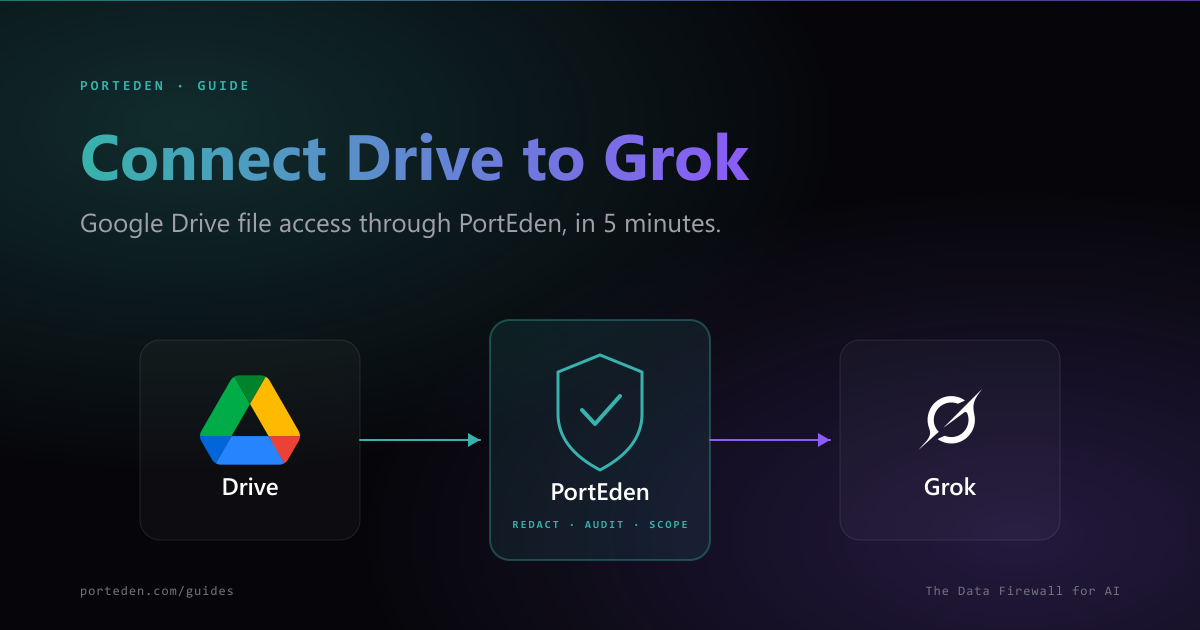
This guide sets up a secure Grok and Google Drive connection using PortEden as the data firewall. You add one Custom MCP URL in Grok, sign in, and Grok can search files, read metadata, download or export content, and (with the right permissions) move, rename, or delete files. Every tool call is scoped by Drive Rules and recorded in the PortEden audit log.
In short
- Start in Grok. Add one Custom MCP URL:
https://mcp.porteden.com/drive - PortEden's auth window opens. Sign in or sign up in one click.
- If Google Drive is already connected to your PortEden account, the authorization step is skipped automatically.
- Default is read-only with confirm-before-write on destructive actions. Drive Rules scope exactly which files Grok can reach.
What you get
When the connection is live, Grok can find and act on files across your Drive. Every tool call routes through PortEden, which applies:
Search and browse
Full-text search across file names and content. Filter by folder, MIME type, date range, or owner. Paginate through large result sets.
Read and export
Get file metadata, view/download links, and export Workspace files (Docs, Sheets, Slides) to PDF, DOCX, XLSX, or CSV.
Manage files
Upload new files (up to 100 MB per token by default), create folders, rename, move, trash, and manage sharing.
File-level scoping
Drive Rules limit Grok to specific files, folders, or MIME types. Block rules override allow rules, so HR or legal folders stay out of reach.
Prerequisites
- A Grok account at grok.com on a plan that supports Connectors and Custom MCP.
- A Google account with access to the Drive files you want Grok to use.
No PortEden account yet? That is fine.
Step 1: Add the PortEden MCP Connector in Grok
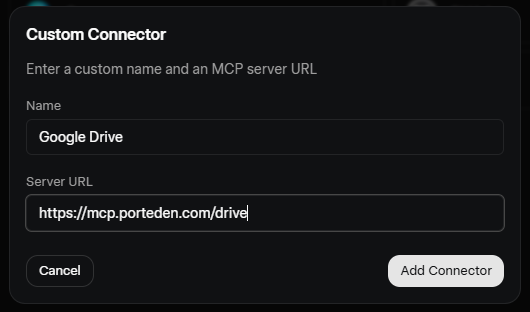
Start in Grok. PortEden runs a hosted MCP server you can connect with one URL.
Connector values
| Field | Value |
|---|---|
| Connector name | Google Drive |
| MCP server URL | https://mcp.porteden.com/drive |
| Authentication | OAuth (handled by PortEden) |
Step 2: Sign in to PortEden
When Grok enables the connector, it opens a PortEden auth window.
What the token looks like
Step 3: Connect Google (first-time only)
This step runs only if your PortEden account does not already have Google connected.
If Google is not connected yet
If Google is already connected to PortEden
You will not see a Google authorization prompt. PortEden attaches the existing connection to the new Grok token and returns you to Grok.
Choosing Drive scopes
drive.readonly. For uploads, moves, or deletes, request drive. To restrict Grok to only files explicitly authorized at sign-in time, use drive.file; this scope plus a PortEden Drive Rule gives the strongest containment.Step 4: Verify the connection
Open a new Grok chat and run a low-risk read prompt. Then check the PortEden audit log.
Try one of these
What to confirm
- Grok returns real files from your Drive, not a refusal or an error.
- If you left the default block-all mode on, Grok will say it cannot find files until you add allow rules. That is expected.
- The PortEden audit log at my.porteden.com shows the request with a green allow decision.
No data yet? Ask Grok to introspect
search_files, get_file, list_folder, upload_file, and move_file.Step 5: Tighten what Grok can do (optional)
The default Drive token is the strictest of any PortEden capability: read-only, block-all. You add allow rules to let Grok see specific files or folders. Edit at my.porteden.com under Access Tokens.
Permission presets for Grok
Pick the action set that matches what you want Grok to do
| Preset | What Grok can do | What it cannot do |
|---|---|---|
| read_only (default) | Search, list, get metadata, read content, export | Upload, rename, move, delete, share |
| read_and_organize | Read plus rename, move, and create folders | Upload new files, delete, share |
| read_and_upload | Read plus upload new files | Delete or modify sharing |
| full_drive | Every operation including upload, delete, and share | Touch other PortEden capabilities (email, calendar) |
Drive Rules
Drive Rules act as an allowlist or blocklist at the file level. They are evaluated for every request, and block rules override allow rules.
- By file ID: Allow Grok to read exactly the files you specify. Strongest containment.
- By folder: Allow a folder and all its subfolders. Easier to maintain than individual file IDs for working sets.
- By MIME type: Allow only PDFs, only spreadsheets, only Workspace docs. Useful for data pipelines.
- Block specific folders: If you use a broad allow rule, add block rules for HR, legal, and personal folders.
{ "allowedDriveOperations": "read_only", "driveAllowAll": false, "driveRules": [ { "ruleType": "folder", "pattern": "google:0B7_PROJECT_FOLDER", "action": "allow" }, { "ruleType": "folder", "pattern": "google:0B7_HR_CONFIDENTIAL", "action": "block" }, { "ruleType": "mime_type", "pattern": "application/vnd.google-apps.spreadsheet", "action": "block" } ] } Changes apply immediately
Suggested prompts for everyday use
Once verified, these prompts are good starting points.
"Find files I worked on this week and group them by folder."
"List spreadsheets in the "Finance" folder that have been modified in the last 30 days."
"Show me the sharing settings on the "Board pack" folder, including who has edit and who has view."
"Move all PDFs from "Inbox" to the "Reading list" folder. Confirm the list before moving."
"Export the "Q2 plan" doc to PDF and give me the download link."
"Upload this attached image to my "Screenshots" folder."
Troubleshooting and error handling
PortEden returns structured errors that Grok surfaces in its replies. Match the message to the table below.
Grok cannot reach the PortEden MCP server
Symptoms
- Grok says "I could not reach the connector" or "Custom MCP server unavailable".
- No request appears in the PortEden audit log.
Checks
- Confirm the MCP URL in the Grok Custom Connector is exactly https://mcp.porteden.com/drive.
- Make sure the connector is Enabled, not just Saved.
- Check Grok's connector status page for any xAI incident.
Debug prompt for Grok
Grok says it cannot find any files
Symptoms
- Grok says "I do not have access to any files" even though Drive contains files.
- Audit log shows search calls returning empty due to block-all mode.
Checks
- Open the token in PortEden. By default, driveAllowAll is false (block-all). Add allow rules for the folders Grok should see.
- If you want broad access with surgical exclusions, set driveAllowAll to true and add block rules for sensitive folders.
- Confirm the user actually has files in the allowed scope.
Debug prompt for Grok
Grok cannot reach a specific file
Symptoms
- Grok says "I cannot access that file" or returns a file_not_allowed error.
- Audit log shows a block decision with rule type drive_rule.
Checks
- Check the token's Drive Rules. The file or its folder must be in an allow rule, not a block rule.
- If you used drive.file scope, the file must have been individually authorized at sign-in time.
- Confirm the user has access to the file in Google Drive. PortEden does not bypass Google's sharing.
Debug prompt for Grok
Grok refuses to move, rename, upload, or delete
Symptoms
- Grok says "I do not have permission to do that" or returns an operation_not_permitted error.
- Audit log shows a block decision on a write call.
Checks
- The default preset is read_only. Switch to read_and_organize, read_and_upload, or full_drive depending on what you need.
- Confirm the user has write access to the file in Google Drive.
- If the action is destructive (delete, share), make sure Confirm-before-write is acceptable for the workflow.
Debug prompt for Grok
Upload fails for a large file
Symptoms
- Grok returns an upload_too_large error.
- Audit log shows the file exceeded the per-token size cap.
Checks
- The default cap is 100 MB per upload. Adjust max_upload_bytes on the token if your plan allows larger uploads.
- For very large files, consider uploading manually in Drive and asking Grok to act on the existing file.
Debug prompt for Grok
429 Too Many Requests or Google quota hit
Symptoms
- Bursts of file operations fail after the first few succeed.
- Audit log shows rate_limited or google_quota_exceeded entries.
Checks
- Google Drive API has per-minute and per-day quotas.
- Batch operations when possible: list a folder's contents in one call rather than per-file metadata.
- Check PortEden plan limits at my.porteden.com.
Debug prompt for Grok
Google returned reauth required
Symptoms
- Calls were working, then all Drive tool calls fail with a provider_reauth_required entry in the audit log.
Checks
- Open Connections in PortEden. Google will show a yellow Needs reauth badge.
- Click Reconnect and complete the Google OAuth flow again.
Debug prompt for Grok
Debug prompts for Grok
When the error message is vague, paste one of these prompts into Grok to make it self-report the raw response.
Pair every debug prompt with the audit log
Security best practices
Default to block-all. Add allow rules only for the specific folders Grok needs. The smaller the surface, the smaller the blast radius.
Use folder-based rules over individual file IDs. Easier to maintain, easier to audit.
Block confidential folders explicitly. Even with a broad allow rule, add block rules for HR, legal, finance close, and personal folders.
Use drive.readonly scope when write access is not needed. The OAuth scope itself becomes an additional fence.
Keep Confirm-before-write on for any token with write permissions. Grok must surface the file list before delete, move, or share.
Limit upload size via max_upload_bytes. Default is 100 MB; lower it if Grok should not be writing large files.
Review the audit log weekly. Filter by the Grok token to see every file accessed and every operation attempted.
FAQ
Do I need a PortEden account before I start?
No. Start in Grok. When you add the PortEden MCP URL as a Custom Connector and Grok opens the auth window, you can sign up at that moment with Google one-click or with email.
Can Grok access files in Shared Drives?
Yes, with the right scope. Shared Drives appear in search results when the user has access. Permissions inside the Shared Drive still apply: if the user is a Content Manager, Grok can read and modify; if Viewer, Grok can only read.
What about files shared with me by other people?
Files shared with you are accessible to Grok the same way they are accessible to you in Drive. The token's Drive Rules apply on top: if a folder or MIME type is excluded, even shared files in that scope are blocked.
Can Grok delete files?
Only if you grant the delete scope, which is off by default. Even then, deletes move files to the Trash (not permanent delete), and confirm-before-write requires Grok to surface the file list before any delete call.
How does Grok know what file I mean when I say 'the budget spreadsheet'?
Grok uses the search_files tool with your phrase, gets a list of matches, and (if ambiguous) asks for clarification. PortEden never lets Grok guess at file IDs that the user did not authorize.
Can I limit Grok to a specific folder?
Yes. From my.porteden.com, add a Drive Rule that allows only a specific folder (and optionally its subfolders). All requests outside that scope are blocked, even if Grok learns the file ID some other way.
Next steps
Connect Google Docs to Grok
Add doc read and edit so Grok can act on the docs it finds.
Connect Google Sheets to Grok
Add spreadsheet read and write so Grok can analyze and update.
Drive API reference
Every Drive endpoint with request and response examples.
Risks of connecting Drive to AI
A regulator-aware look at what can go wrong, and how PortEden mitigates each risk.