Secure Grok Google Sheets Connection with PortEden
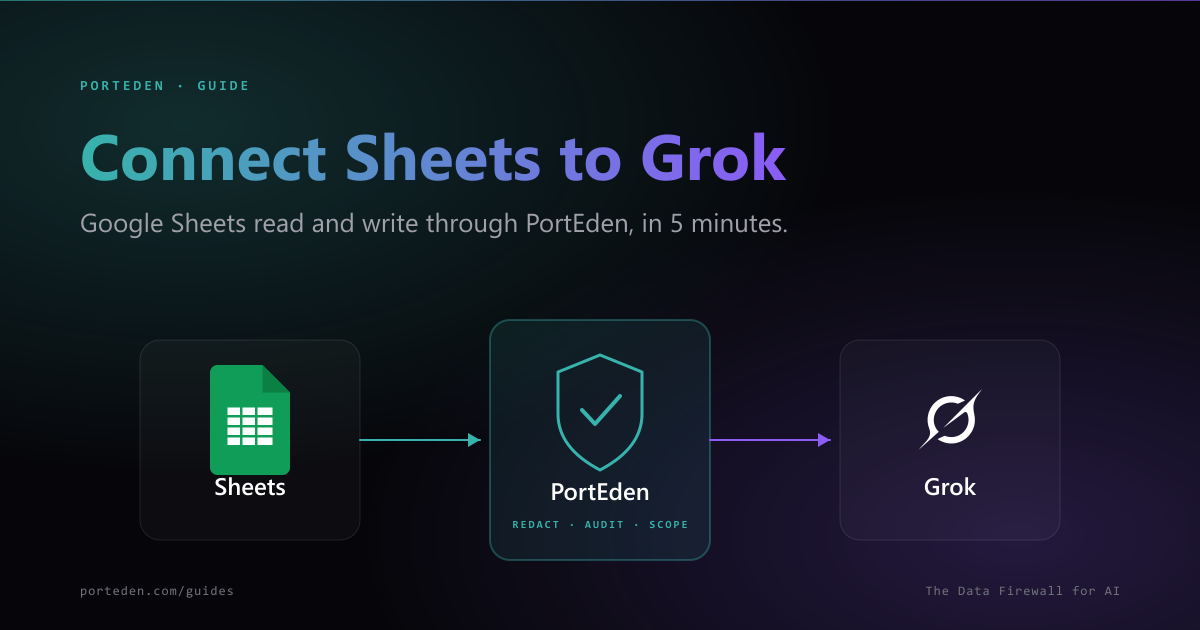
This guide sets up a secure Grok and Google Sheets connection using PortEden as the data firewall. You add one Custom MCP URL in Grok, sign in, and Grok can read cells, write values, append rows, and work with formulas through scoped permissions. Confirm-before-write is on by default so Grok cannot quietly overwrite data, and every tool call is recorded in the PortEden audit log.
In short
- Start in Grok. Add one Custom MCP URL:
https://mcp.porteden.com/google-sheets - PortEden's auth window opens. Sign in or sign up in one click.
- If Google Drive is already connected to your PortEden account, the Sheets capability rides on it. No extra OAuth.
- Default is append-only with confirm-before-write. Tighten or relax from my.porteden.com.
What you get
When the connection is live, Grok can answer questions about your spreadsheets and (with the right permissions) write to them. Every tool call routes through PortEden, which applies:
Read cells and ranges
Read values, formulas, or formatted strings from any range. Supports A1 notation, named ranges, and explicit sheet tab IDs.
Write and append rows
Write values, append rows to the end of a table, or update specific cells. Formula support is intact. Confirm-before-write surfaces a preview by default.
Sheet metadata
List sheet tabs, get headers, find the bottom of a column. Grok uses this to write to the right place without needing the user to spell out the range every time.
Per-file scoping
Limit a token to a single spreadsheet or a folder of spreadsheets. Grok cannot reach files outside the allowed list, even if it knows the file ID.
Prerequisites
- A Grok account at grok.com on a plan that supports Connectors and Custom MCP.
- A Google account with access to the Sheets you want Grok to use.
No PortEden account yet? That is fine.
Step 1: Add the PortEden MCP Connector in Grok
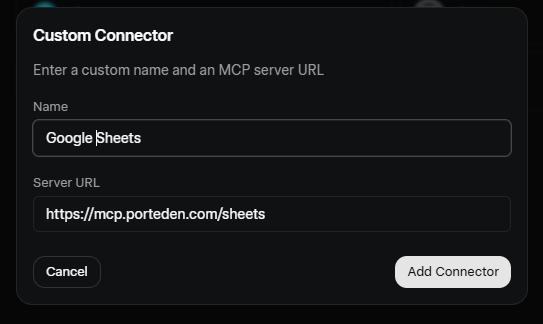
Start in Grok. PortEden runs a hosted MCP server you can connect with one URL.
Connector values
| Field | Value |
|---|---|
| Connector name | Google Sheets |
| MCP server URL | https://mcp.porteden.com/google-sheets |
| Authentication | OAuth (handled by PortEden) |
Step 2: Sign in to PortEden
When Grok enables the connector, it opens a PortEden auth window.
What the token looks like
Step 3: Connect Google (first-time only)
Google Sheets access uses the same Drive scope as PortEden's Drive capability. If your PortEden account already has Google Drive connected, this step is skipped automatically.
If Google is not connected yet
If Google is already connected to PortEden
You will not see a Google authorization prompt. PortEden attaches the existing connection to the new Grok token and returns you to Grok in a couple of seconds.
Workspace accounts and scope
drive.readonly for read-only Sheets access, or drive for read plus write. If you only want Grok to touch specific Sheets, request drive.file and pre-authorize specific files; PortEden will then refuse anything outside the file list at the API level.Step 4: Verify the connection
Open a new Grok chat and run a low-risk read prompt. Then check the PortEden audit log to confirm the request shows up.
Try one of these
What to confirm
- Grok returns real cell values from your Sheets, not a refusal or an error.
- If a cell contains a formula, Grok reports the computed value by default; ask it to return the formula text explicitly if you need it.
- The PortEden audit log at my.porteden.com shows the request with a green allow decision.
No data yet? Ask Grok to introspect
list_spreadsheets, read_range, append_row, and update_cells.Step 5: Tighten what Grok can do (optional)
The default token is conservative. Once the workflow is proven, you can grant deeper write access or scope it further. Edit the token at my.porteden.com under Access Tokens.
Permission presets for Grok
Pick the action set that matches what you want Grok to do
| Preset | What Grok can do | What it cannot do |
|---|---|---|
| read_only | List sheets, read ranges, get headers and metadata | Write anything, even to empty cells |
| append_only (default) | Read plus append rows to the bottom of existing tables | Overwrite existing cells, change formulas |
| read_write_existing | Read plus update cells in specified ranges, append rows | Delete sheets or break formulas without confirmation |
| full_sheets | Every operation including create, delete, and rename sheets | Touch other PortEden capabilities (email, calendar) |
Recommended rules for a Grok token
- Per-spreadsheet scope: Add a Drive Rule that allows specific file IDs. Grok cannot touch anything else, even with broader OAuth scopes.
- Append over update: Prefer the append_only preset when Grok is logging data. It cannot overwrite history.
- Confirm before write: Keep on for any update or delete. Grok will surface a preview of the cell range and new values.
- Formula protection: Enable the protect_formulas flag if a sheet relies on formula cells. PortEden will refuse writes that would replace a formula with a value.
- Sheet tab allowlist: If a spreadsheet has a sensitive tab (e.g.
Payroll), exclude it from the token.
Changes apply immediately
Suggested prompts for everyday use
Once verified, these prompts are good starting points. Each maps to a single PortEden tool call.
"Read the Q2 sales sheet, columns A through F, and summarize the top 5 customers by revenue."
"Append a new row to my expense tracker: date today, category Travel, amount $145, note "client lunch". Confirm before sending."
"In the Hires sheet, find rows where the Status column equals "Open" and list the Role and Hiring Manager columns."
"Read the Marketing Spend sheet and group spend by channel for the last quarter."
"Find rows in the Leads sheet where the Email column is blank and list the row numbers. Do not modify anything."
"In the Tasks sheet, find all rows where Status equals "Done" and Date Closed is empty. Set Date Closed to today. Confirm the full list of row numbers before writing."
Troubleshooting and error handling
PortEden returns structured errors that Grok surfaces in its replies. Match the message to the table below.
Grok cannot reach the PortEden MCP server
Symptoms
- Grok says "I could not reach the connector" or "Custom MCP server unavailable".
- No request appears in the PortEden audit log.
Checks
- Confirm the MCP URL in the Grok Custom Connector is exactly https://mcp.porteden.com/google-sheets.
- Make sure the connector is Enabled, not just Saved.
- Check Grok's connector status page for any xAI incident.
Debug prompt for Grok
Grok cannot find or reach a spreadsheet
Symptoms
- Grok says "I cannot access that spreadsheet" or "file not found".
- Audit log shows a block decision with rule type drive_rule.
Checks
- Open the token in PortEden and check the Drive Rules. The file ID or folder must be in an allow rule.
- If you used drive.file scope, the spreadsheet must have been individually authorized at sign-in time.
- Confirm the user actually has access to the file in Google Drive. PortEden does not bypass Google's sharing.
Debug prompt for Grok
Grok refuses to write or update cells
Symptoms
- Grok says "I do not have write permission" or returns a write_not_permitted error.
- Audit log shows a block decision on a write call.
Checks
- Open the Access Token in PortEden. The default preset is append_only; updating existing cells requires read_write_existing.
- Check the protect_formulas flag. A write that would replace a formula cell is refused unless explicitly allowed.
- Confirm the sheet tab is not in the excluded tabs list.
Debug prompt for Grok
Grok says the range is invalid
Symptoms
- Grok returns "INVALID_ARGUMENT: Unable to parse range" or similar.
- The range string in the request is malformed.
Checks
- Re-run the request with explicit A1 notation: Sheet1!A1:C10, not just A1:C10.
- If the sheet tab name has spaces or special characters, quote it: 'Sales Q2'!A1:F100.
- If using a named range, confirm it exists in the spreadsheet's Named Ranges menu.
Debug prompt for Grok
429 Too Many Requests or Google quota hit
Symptoms
- Bursts of cell reads or writes fail after the first few succeed.
- Audit log shows rate_limited or google_quota_exceeded entries.
Checks
- Google Sheets API has per-minute and per-day quotas. Batch operations into ranges rather than per-cell.
- Check the PortEden plan limits at my.porteden.com.
- PortEden surfaces Google's retry-after in the response; respect it.
Debug prompt for Grok
Google returned reauth required
Symptoms
- Calls were working, then all Sheets tool calls fail with a provider_reauth_required entry in the audit log.
Checks
- Open Connections in PortEden. Google will show a yellow Needs reauth badge.
- Click Reconnect and complete the Google OAuth flow again. This usually follows a password change or a Google security event.
Debug prompt for Grok
Debug prompts for Grok
When the error message is vague, paste one of these prompts into Grok to make it self-report the raw response.
Pair every debug prompt with the audit log
Security best practices
Scope the token to specific spreadsheets via Drive Rules. The fewer files Grok can reach, the smaller the blast radius if a prompt goes wrong.
Default to append_only. Grok can log new rows without ever overwriting existing data. Upgrade to read_write_existing only when needed.
Keep protect_formulas on for any sheet that depends on formulas. PortEden will block writes that would replace formula cells with values.
Keep Confirm-before-write on for any token with write permissions. Grok must surface the cell range and new values before any change.
Exclude sensitive tabs (Payroll, Compensation, PII) from the token, even on spreadsheets that are otherwise allowed.
Review the audit log weekly. Filter by the Grok token to see every range read and every write attempted.
FAQ
Do I need a PortEden account before I start?
No. Start in Grok. When you add the PortEden MCP URL as a Custom Connector and Grok opens the auth window, you can sign up at that moment with Google one-click or with email.
I already have a PortEden account with Google Drive connected. Do I need to reauthorize?
No. PortEden detects your existing Google connection during the Grok auth flow and skips the OAuth step automatically. Sheets, Docs, and Drive all ride on the same underlying connection.
Can Grok modify cells that contain formulas?
Yes, but PortEden flags any write that would overwrite a formula. With confirm-before-write on, Grok will surface a preview showing the formula it would replace before applying the change. If protect_formulas is on, the write is refused outright.
Will Grok accidentally overwrite my data?
Not by default. The standard preset is append_only or read_only. Writing to existing cells requires the read_write_existing preset, and confirm-before-write is enabled so Grok surfaces a preview of the cell range and new values before sending.
Does Grok understand A1 notation, named ranges, and sheet tabs?
Yes. The PortEden Sheets tools accept A1 ranges (Sheet1!A1:C10), named ranges, and explicit sheet tab IDs. Grok will ask for clarification if the range is ambiguous.
Can I limit Grok to a specific spreadsheet?
Yes. From my.porteden.com, add a Drive Rule to the token that allows only a specific spreadsheet file ID or a folder. All requests outside that scope are blocked, even if Grok knows the file ID of an excluded file.
Next steps
Connect Google Drive to Grok
Add file search and metadata so Grok can find the spreadsheet you mean.
Connect Google Docs to Grok
Same flow for Docs. Pair with Sheets for read/write across your Google workspace.
Sheets API reference
Every Sheets endpoint with request and response examples.
PortEden for Grok
Capabilities, pricing, and deeper architecture notes for using Grok with PortEden.