Grok connectors are one of the most useful features xAI has shipped, and also one of the easiest to switch on without thinking about what you are handing over. With a couple of clicks, Grok can read your email, open your calendar, search your drive, and even act on your behalf. That is genuinely powerful. It also means an AI assistant now has a key to some of your most sensitive data.
This guide explains what Grok connectors are, which apps they reach, how they actually work under the hood, and the one security detail most people miss. Then it shows how to add PortEden as a secure connector so Grok stays useful without seeing more than it should. No deep technical background needed.
What Are Grok Connectors?
Grok connectors are integrations that let Grok work directly with the apps you already use, instead of you copying and pasting text in and out of the chat. xAI describes them as a way to bring your everyday tools into Grok so it can read, summarize, and act on real data. xAI rolled them out across the Grok web app, iOS, and Android in May 2026.
In practice, a connector is an authorized link between Grok and one of your accounts. Once you connect Gmail, for example, you can ask Grok to "summarize the unread threads from this week" and it will reach into your inbox to do it. The same idea extends to calendars, files, notes, and customer records, depending on which connectors you turn on.
Adding one is deliberately simple. On the web you open the connectors menu, choose a service, and approve it through a normal sign-in screen. On mobile you go to Settings and then Connectors. xAI states that a connector requests only the permissions it needs, and you manage them all from one place at grok.com/connectors.
Which Connectors Are Available
As of mid-2026, Grok ships a set of first-party connectors covering the most common work apps, and xAI continues to add more. The main ones are:
- Google Workspace: Gmail, Google Calendar, and Google Drive (Docs, Sheets, Slides)
- Microsoft 365: Outlook mail and calendar, OneDrive, SharePoint, and Microsoft Teams
- Productivity and dev tools: Notion, GitHub, and Linear
- Communication and CRM: Slack, Salesforce, and HubSpot
The exact list changes often, so treat this as a snapshot and check grok.com/connectors for the current set. Connectors and the custom option described below are available on Grok's paid tiers, so confirm what your plan includes with xAI before you rely on them.
How Grok Connectors Work
There are three different things people mean when they say "Grok connectors," and it helps to keep them separate.
Built-in connectors
These are the named integrations above. When you connect one, Grok authenticates to that service using OAuth, the same standard sign-in handshake your other apps use. Most connectors are read by default, meaning Grok can search and summarize but not change anything. Several support write actions (creating a calendar event, editing a document, sending an email), but writing is an opt-in permission you grant on purpose. This is more than passive lookup: where write is enabled, Grok can take real actions in your accounts.
Custom MCP connectors
Grok also supports custom connectors built on the Model Context Protocol (MCP), an open standard for connecting AI assistants to tools. xAI calls this "bring your own MCP." Any MCP server reachable on the public internet can be added from grok.com/connectors by choosing New Connector and then Custom, and Grok will discover the tools that server exposes. This is the door PortEden uses, and it is the key to making Grok connectors secure.
The developer API side
Separately from the consumer app, the xAI API offers remote MCP tools and an agent tools capability for developers building their own products on Grok. That is a distinct surface from the connectors you add inside the Grok app, though both rely on the same tool-calling idea. If you are a builder, see the PortEden API reference for how to wire it up.
The Security Gap to Know About
Here is the detail most people miss. A built-in connector grounds on your raw OAuth scope, which is to say everything your account can technically reach. When you connect Gmail, Grok can see the whole mailbox, not just the part relevant to the task. Connect Drive, and it can search every file you have access to, including documents shared with you that you forgot existed. This is the same oversharing problem that made headlines during the Microsoft 365 Copilot rollout.
That breaks down into a few concrete risks:
- Over-broad reads. A connector with full mailbox or drive scope can surface confidential threads, HR records, or client files that were never meant for an AI to process.
- Write actions. Once write is enabled, a misread instruction can send an email or edit a document for real, not just draft it.
- Limited visibility. Native connectors do not give you a per-request record of which specific files or messages the assistant actually touched, which makes an after-the-fact review hard.
- Data handling. What an AI provider does with connected data varies by plan and changes over time. xAI states that data on its Grok for Business and Enterprise tiers is not used for training, but consumer policies differ, so confirm the terms for your own plan.
It is worth a brief reality check on why this matters. In August 2025, Forbes and Fortune reported that hundreds of thousands of Grok conversations shared through Grok's public share feature had been indexed by search engines, exposing some sensitive content. That incident involved the share feature, not connectors, so the two should not be confused. It is a useful reminder, though, that the data you route through any AI assistant deserves the same care you give the rest of your stack.
The fix is not to avoid Grok connectors. They are too useful. The fix is to put a layer between Grok and your data that enforces your rules on every request.
How to Add PortEden as a Secure Connector
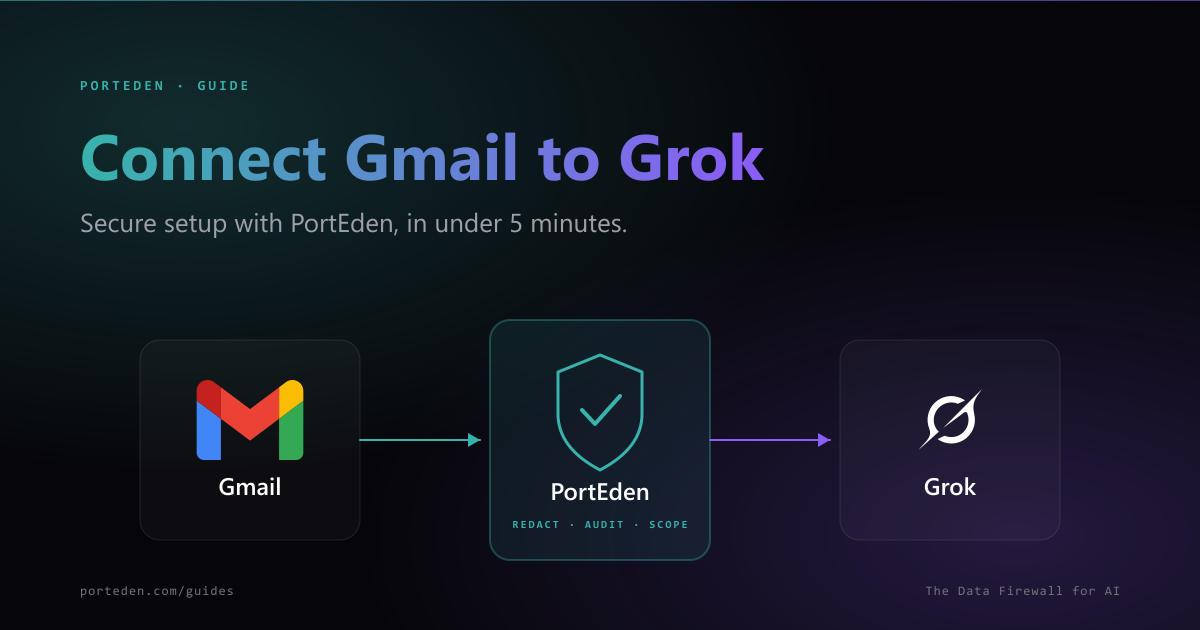
PortEden is a data firewall that sits between Grok and your accounts. Instead of connecting Gmail or Drive to Grok directly, you connect them to PortEden, then add PortEden to Grok as a custom MCP connector. Every request Grok makes then passes through PortEden's rules first, so Grok only ever sees data your policy has approved.
Because PortEden runs a hosted MCP server, adding it is the same "bring your own MCP" flow described above. There is nothing to install or deploy.
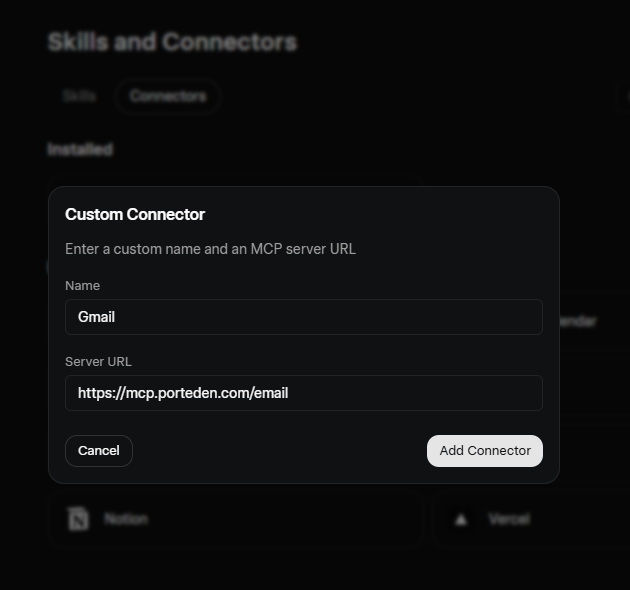
The five-minute setup
- In Grok, open
grok.com/connectors, click New Connector, and choose Custom. - Give it a clear name (for example,
Email) and paste the matching PortEden MCP URL, such ashttps://mcp.porteden.com/emailfor email orhttps://mcp.porteden.com/calendarfor calendar. - Save and enable the connector. Grok opens a PortEden sign-in window. Sign in or create an account in one click. You do not paste any token into Grok, since PortEden handles the OAuth handshake itself.
- Connect the underlying account (Gmail, Outlook, Drive, and so on) inside PortEden if it is not connected already. Then ask Grok a simple read question to confirm it works.
Each PortEden capability has its own URL (email, calendar, drive, docs, sheets, tasks), so you add the ones you want as separate custom connectors. The full walkthrough with screenshots lives in the Connect Gmail to Grok guide, and there are matching guides for Google Drive and Outlook.
What you can control
Once PortEden is in front of Grok, you decide exactly what each connector can see and do, from your PortEden dashboard:
| Control | What it does |
|---|---|
| Redaction | Strips names, emails, phone numbers, and 50+ other identifier types out of responses before they reach Grok. |
| Per-action limits | Grant read, draft, send, or delete as separate permissions. A read-only connector simply cannot send. |
| Contact and label rules | Block specific people, domains, or labels (legal, HR, clients under NDA) so Grok never sees them. |
| Time windows | Limit Grok to recent items, for example the last 90 days, instead of your entire history. |
| Confirm before write | Require an explicit preview before any send or delete, so a misread prompt cannot act on its own. |
| Audit trail | Every tool call is logged with the requested action, the decision, and the response shape. Exportable to your SIEM. |
To be precise about that last row: PortEden records the tool call Grok makes through the firewall, the access-rule decision, and the redacted response returned, including anything blocked. It does not see the prompt you typed into Grok or Grok's natural-language answer back to you. You can read more on the audit trail and data redaction pages.
Tips for Using Grok Connectors Safely
Whether or not you put a firewall in front of them, these habits keep Grok connectors useful and low-risk:
- Start read-only. Connect with read access first and only add write permissions once you trust the workflow. It is easier to grant later than to undo a bad send.
- Connect the minimum. Turn on only the connectors you actually use. Every connector you enable is more data Grok can reach.
- Keep confirmation on for destructive actions. Sending and deleting should require a preview, not happen silently.
- Use scoped access for sensitive accounts. For inboxes and drives with regulated or client data, limit by contact, label, and time window rather than granting the whole account.
- Keep a record. Make sure you can answer "what did Grok read last Tuesday?" A per-request audit trail turns that from a guess into a query.
- Review and revoke. Check what is connected periodically and remove anything you no longer use. Revocation should be one click.
Grok Connectors FAQ
What are Grok connectors?
Grok connectors are integrations that let xAI's Grok work directly with the apps you use, such as Gmail, Google Drive, Notion, and GitHub. Once you connect an account, Grok can read, summarize, and, where you allow it, act on that data without copy-pasting. xAI rolled them out across web, iOS, and Android in May 2026.
Which apps can Grok connect to?
As of mid-2026, Grok connectors cover Google Workspace (Gmail, Calendar, Drive), Microsoft 365 (Outlook, OneDrive, SharePoint, Teams), Notion, GitHub, Linear, Slack, Salesforce, and HubSpot, with more added over time. Grok also supports custom connectors built on the Model Context Protocol (MCP).
Are Grok connectors free?
Connectors and the custom MCP option are available on Grok's paid tiers as of mid-2026. Availability changes often, so confirm what your plan includes with xAI.
Are Grok connectors safe to use?
They are convenient, but a built-in connector grounds on your full account access, so Grok can reach more than a task needs, and native logging of what it touched is limited. You can close that gap by adding a data firewall like PortEden in front of your connectors to redact sensitive data, limit actions, and log every request.
How do I add a custom connector to Grok?
Open grok.com/connectors, click New Connector, and choose Custom. Give it a name and paste an MCP server URL. To add PortEden, use a PortEden MCP URL such as https://mcp.porteden.com/email, then sign in to PortEden when Grok opens the authorization window. No token pasting is required.
What is the difference between built-in and custom Grok connectors?
Built-in connectors are xAI's named integrations that connect Grok straight to a service over OAuth. Custom connectors let you point Grok at any MCP server, including PortEden, so you can place a security and redaction layer between Grok and your data.
The Bottom Line
Grok connectors turn Grok from a clever chatbot into an assistant that works across your real tools, and that is a genuine step forward. The catch is that a built-in connector reaches as far as your account does, with limited visibility into what it actually touched. For a personal to-do list that is fine. For an inbox full of client contracts or a drive of financial records, it is worth a second layer.
Adding PortEden as a custom MCP connector keeps the convenience while putting you back in control. Grok sees only what your rules allow, sensitive details are redacted before they leave your perimeter, and every request is logged. You connect once, set your rules, and Grok gets to work on data you can safely let it see.
Grok, connected. Your data, governed.